/contrib/famzah

Enthusiasm never stops


Leave a comment

Fix LCP issues caused by Cookiebot on Mobile

Recently we added Cookiebot to our corporate website for better GDPR and privacy compliance. Immediately after that, the PageSpeed Insights Performance score for Mobile dropped from Good (green) to Needs Improvement (orange). The Desktop score was not affected at all.

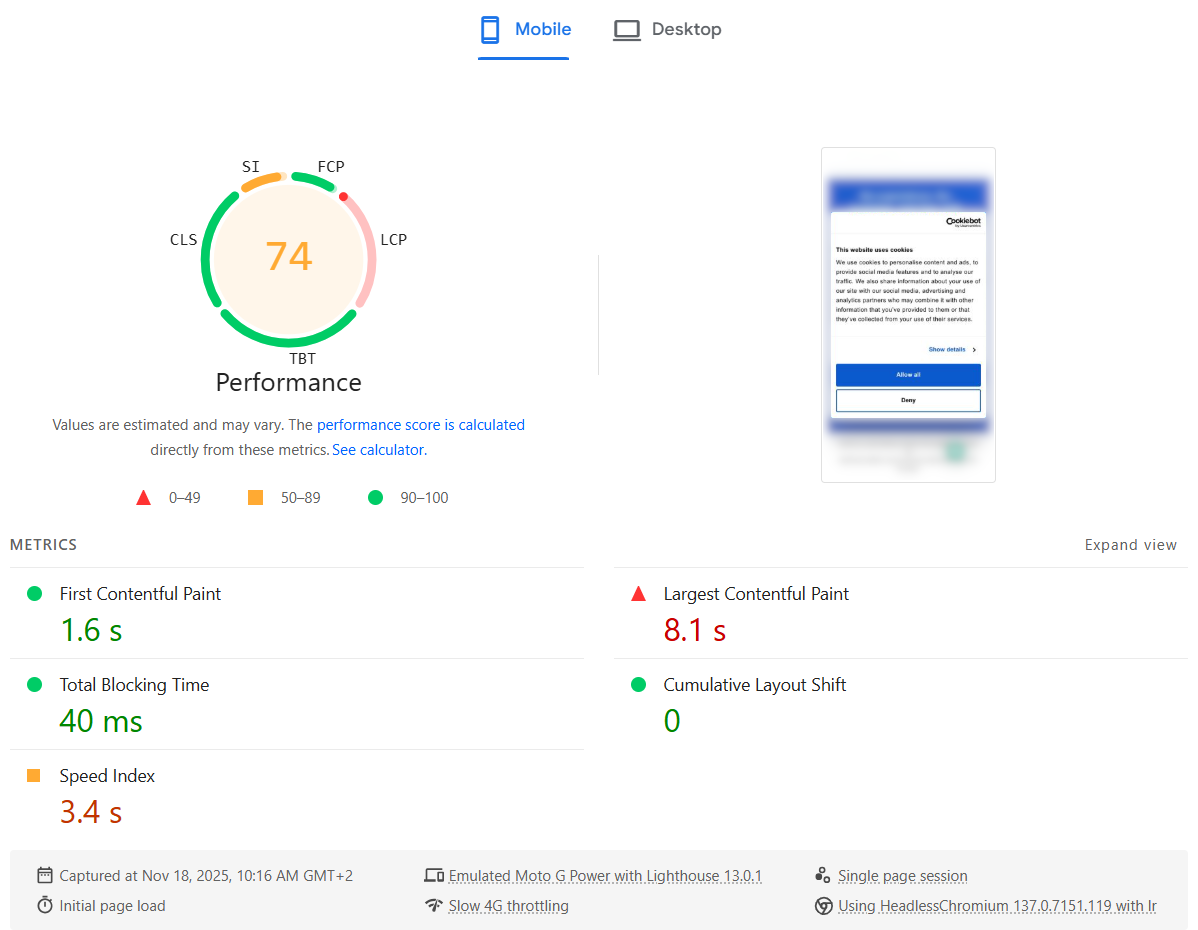
Digging into the details, the Largest Contentful Paint (LCP) metric was suddenly marked as Poor (red).

The strange part: in reality, the website still felt just as fast as before — including the Cookiebot banner. Everything appeared quickly, and users wouldn’t notice any slowdown. It felt like Lighthouse was “wrong”: it was measuring something that didn’t match the actual user experience.

Here is what the PageSpeed Insights test showed:

Why it only happens on mobile

My theory:

  • The mobile viewport is smaller, so the Cookiebot consent dialog text block occupies a big portion of the screen.
  • That makes the Cookiebot banner the largest element in the viewport, so it becomes the LCP candidate.
  • In the Lighthouse mobile test, CPU is heavily throttled, so Cookiebot’s JavaScript (plus other third-party scripts) takes much longer to parse, execute and finish.
  • As a result, LCP is reported as very slow — even though visually the page looks complete very quickly.

In other words, the metric blames LCP on the Cookiebot dialog, but this doesn’t reflect what real users see.

The fix: make the Cookiebot dialog smaller

To fix this, we need to make sure the Cookiebot dialog is no longer the largest element in the viewport. That means shrinking its visual footprint, especially on mobile.

The main changes are:

  • Remove the Cookiebot logo banner
  • Use smaller fonts and buttons
  • Reduce the overall dialog width/height, particularly on small screens

You can apply all of this with a bit of custom CSS. Here is the CSS I used:

https://gist.github.com/famzah/c9f6d58256c6c5ddf8fdb88ac59cb963

After adding it, test the site with different devices and viewport sizes, including Desktop, Tablet and Mobile, to ensure the dialog still looks good and remains accessible.

Results

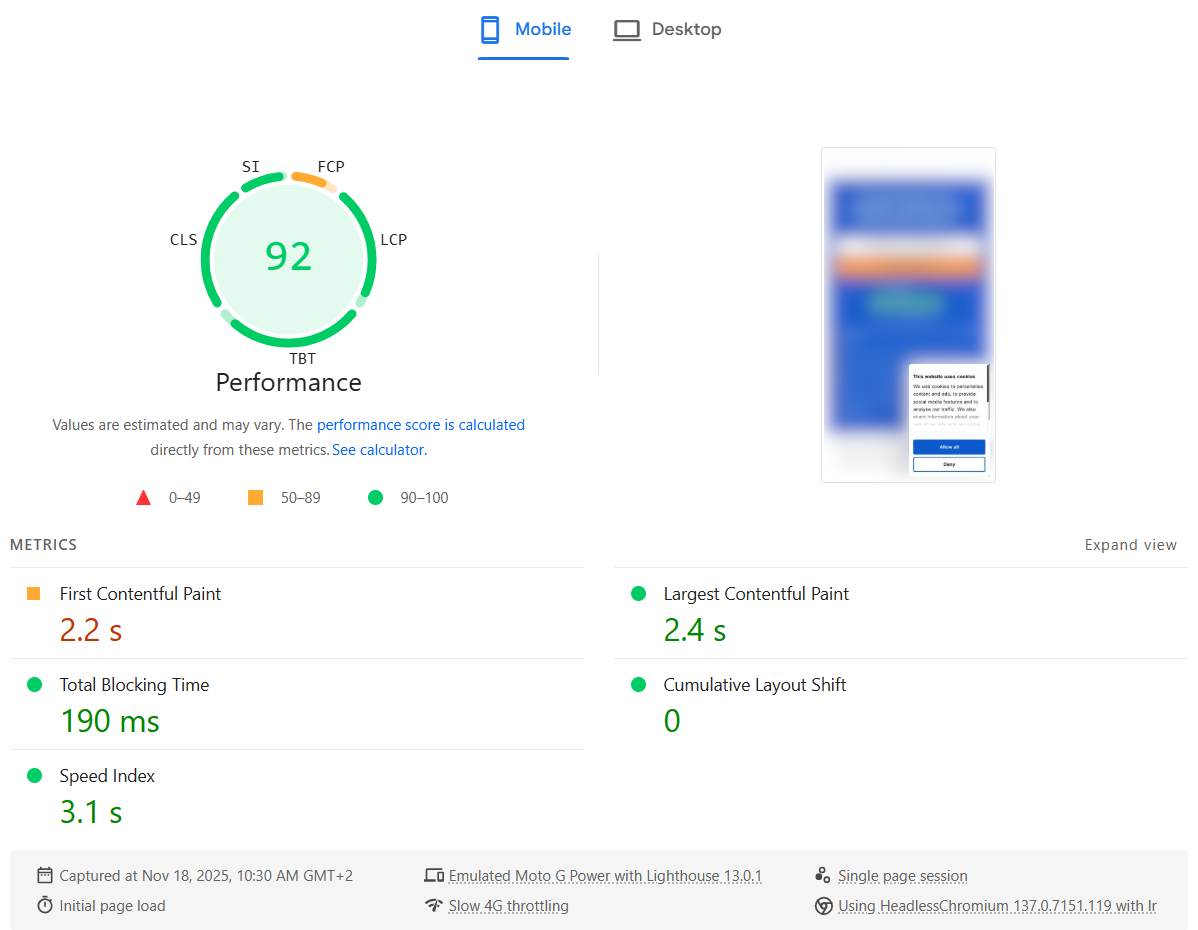
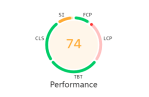
After applying the CSS, the PageSpeed Insights report improved immediately: the LCP metric went back to a healthy value and the overall Mobile Performance score returned to green.

Here is what the PageSpeed Insights test showed after the fix:


So if Cookiebot is tanking your LCP score on mobile, try shrinking the consent dialog — you may be able to fix your Core Web Vital without changing anything else in your frontend.


Leave a comment

Achieving Zero-Downtime PHP-FPM Restarts and Atomic Updates

The Challenge with PHP-FPM Restarts

PHP-FPM (FastCGI Process Manager) is a powerful solution for managing PHP processes, but it poses challenges when updating PHP applications or configurations without impacting active requests. A key setting in PHP-FPM is process_control_timeout, which dictates how long the master process waits for a child to finish before forcefully terminating it on graceful restart. If a slow child lingers, incoming requests queue up, causing delays for the duration of the timeout. This delay can lead to significant downtime, especially for high-traffic applications.

The Solution: Zero-Downtime Restarts and Atomic Deployments

These challenges are addressed through a proof-of-concept designed to enable zero-downtime PHP-FPM restarts and atomic source code updates, ensuring seamless service continuity. Key components of the solution include:

  1. Redundant PHP-FPM Pools with Replicas:
    • PHP-FPM instances are managed in redundant pools with at least two replicas.
    • While one replica restarts, the other remains active, ensuring no downtime.
  2. Load Balancer Management:
    • A lightweight load balancer dynamically toggles traffic between replicas during restarts, making the switch invisible to users.
  3. Atomic Code Deployment:
    • Instead of directly using the “release” symlink as the PHP-FPM working directory, the release target is mounted in an isolated user namespace before starting the PHP-FPM master processes.
    • This ensures that changes to the symlink location can be made immediately for new deployments, while running PHP-FPM masters continue to use their isolated view of the release directory until they are restarted at a convenient time.

Important Considerations

  • Static Content and Atomicity:
    • In this setup, Apache serves static content (files not ending in “.php") directly by following the “release” symlink. This means that updates to the “release” symlink immediately impact Apache-served static files, diverging from the atomic deployment of PHP sources.
    • To achieve true atomic deployment of both static content and PHP files, the setup must be reworked. This could involve putting both PHP and static file serving behind a single backend and managing traffic between two such backends in the same way that traffic is currently managed between PHP-FPM backends.
  • Temporary Capacity Reduction:
    • During the restart of one replica (PHP-FPM master), only half of the capacity is available. This capacity reduction should be considered in the context of the expected traffic load during deployments or restarts.
  • Increased Memory Usage:
    • Running two (or more) identical PHP-FPM masters introduces higher memory consumption, as each master maintains its own independent OPcache. This redundancy ensures reliability and atomicity but comes at the cost of increased resource usage.

Demo, documentation and source code

The full code and setup guide are available on GitHub. Contributions and feedback are welcome!


Leave a comment

Troubleshooting Zigbee Network Stability and Device Connectivity | Raspberry Pi + ConBee

I have been running a Zigbee network with 20 Aqara & IKEA devices for almost two years now. The coordinator is a Raspberry Pi 400 server with a ConBee II USB dongle. It worked more or less flawlessly with very few issues until recently. I had to reboot the coordinator server in order to migrate its root file system from an SD card to a USB-connected SSD drive.

Once I rebooted the coordinator server, almost half of the devices couldn’t reconnect to the network. I upgraded the Zigbee2MQTT daemon, which bridges Zigbee to MQTT events but this didn’t help. A few more restarts didn’t help either. There are plenty of comments on the Internet that the Zigbee USB dongles aren’t stable and some users suggested that the USB port of the Raspberry Pi may be to blame, because it couldn’t supply enough (stable) power. This made sense and I purchased an active USB 3.0 hub with external power supply, which is especially designed for power hungry USB devices like HDDs, etc. Once I plugged in the ConBee II USB dongle into the active powered USB 3.0 hub, my Zigbee network started working again flawlessly!

There was only one more minor issue. While the network was incomplete I tried to remove and then re-pair an Aqara sensor, which didn’t work. This is something that other people are experiencing, too. Even after the Zigbee network was stable again, I couldn’t re-pair the sensor. I brought it close to the coordinator, the LED of the sensor was blinking as expected during re-pair but nothing was registered by the coordinator. Finally, I suspected that the battery of the sensor was too weak and couldn’t provide enough power for the re-pairing interview between the sensor and the coordinator. Once I replaced the battery, the re-pairing worked flawlessly on the first attempt. The LED was also blinking much stronger now. To be honest, the Zigbee2MQTT web interface had been showing the battery at 0% for a long time., but since the sensor was communicating events successfully, I didn’t pay attention to this indicator. I have a few more sensors with a 0% battery report but they all are still communicating events successfully.


Leave a comment

Guide PC210 vs. FLIR C5 thermal camera

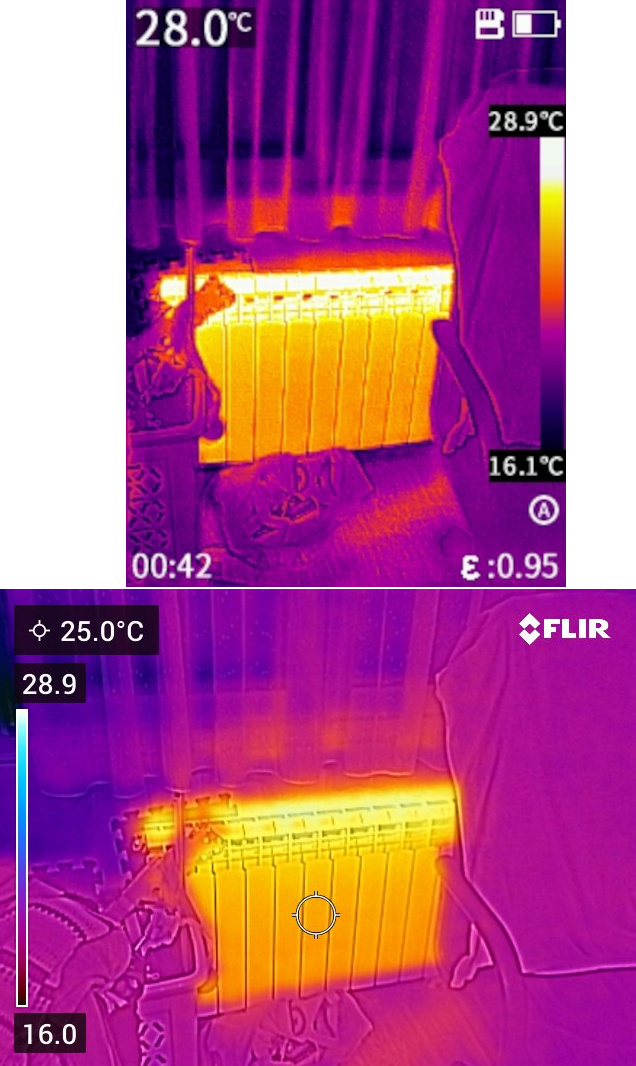
Today I received my Guide PC210 thermal camera which is half the price of FLIR C5 so I was really curious to make a quick test to compare them.

To be honest I was about to purchase a UNI-T UTi260B camera but it wasn’t immediately available in Europe. The comparison of Eleshop.eu between those two affordable thermal cameras listed PC210 as a winner and the review at EEVblog was also positive.

In summary, I believe that PC210 is an excellent alternative to FLIR C5.

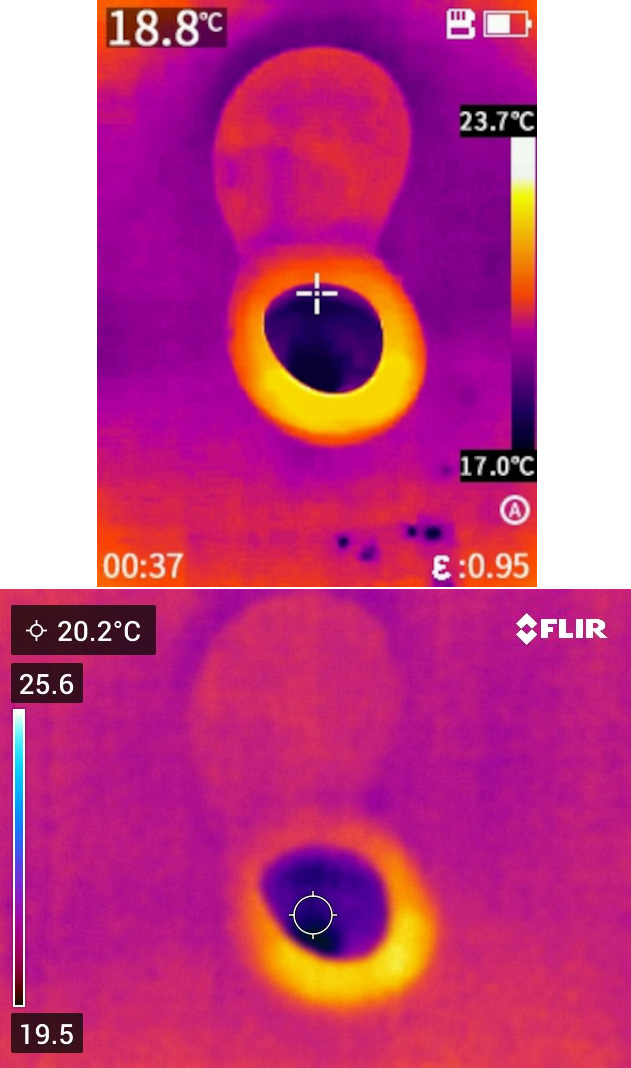
Here is an image taken by both cameras in a bathroom in complete darkness:

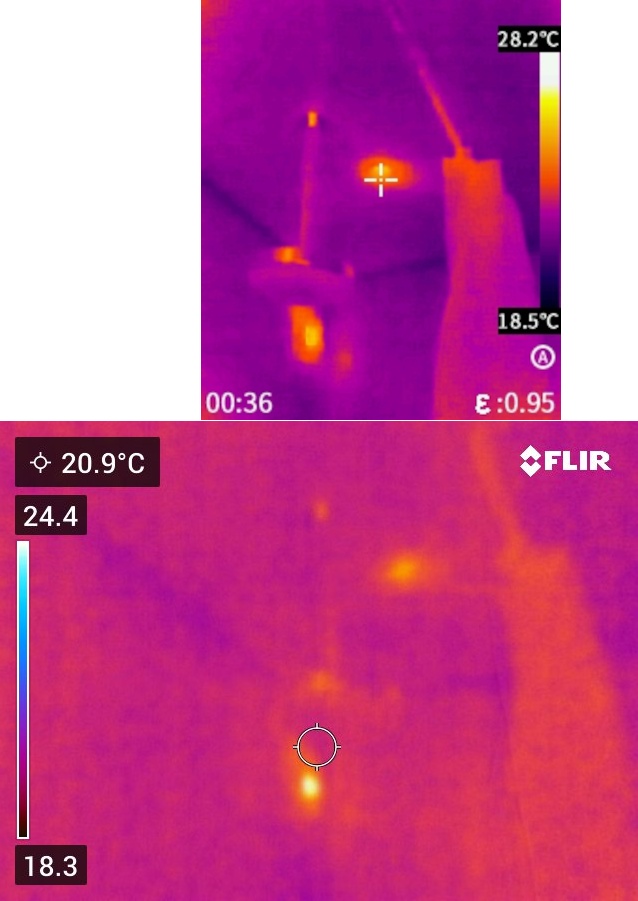
Here is another one in complete darkness:

Here is an image taken at night in a room with the lights on:

As a beginner in thermal imaging, having experimented with both cameras for a couple of minutes, my conclusions are:

  • The PC210, with its higher infrared resolution of 256×192 pixels, captures more thermal details compared to the FLIR C5, which has a 60% lower IR resolution of 160×120 pixels.
  • FLIR C5 does a better job at mixing the visible light details to thermal images using their patented MSX® technology.
  • The PC210 has a better refresh rate (25 Hz) compared to FLIR C5 (approximately 9 Hz), which makes the PC210 feel a lot smoother for real-time observation of a room, for example. Also PC210 boots up really quickly.


Leave a comment

Arduino ESP32 development under Linux

I am using a Windows desktop and I run Linux as a Virtualbox guest. ESP32 development under Windows is super easy to set up – you only need to install the Arduino IDE. Unfortunately, it really bugged me that compilation time is so slow. I’m not enough experienced and test a lot on the real hardware, and slow compilation really slows down the entire development process.

The Arduino IDE v2 has improved and supports parallel compilation within a submodule, but still it works slower than expected on my computer and is not ideally parallelized. Additionally, I noticed that some libraries are recompiled every time which is a huge waste of time (and resources) because libraries don’t change. Only my sketch source code changes.

I decided to see how compilation performs on Linux. The Arduino project has a command-line tool to manage, compile and upload code. The tool is still in active development but works flawlessly for me.

Here is how I installed it on my Linux desktop:

wget https://downloads.arduino.cc/arduino-cli/arduino-cli_latest_Linux_64bit.tar.gz
tar -xf arduino-cli_latest_Linux_64bit.tar.gz
mv arduino-cli ~/bin/
rm arduino-cli_latest_Linux_64bit.tar.gz

arduino-cli config init
vi /home/famzah/.arduino15/arduino-cli.yaml
  # board_manager -> additional_urls -> add "https://raw.githubusercontent.com/espressif/arduino-esp32/gh-pages/package_esp32_index.json"
  # library -> enable_unsafe_install -> set to "true" # so that we can install .zip libraries
arduino-cli core update-index
arduino-cli core install esp32:esp32
arduino-cli board listall # you must see lots of "esp32" boards now

Here is how to compile a sketch and upload it to an ESP32 board:

cd %the_folder_where_you_saved_your_Arduino_sketch%

arduino-cli compile --warnings all -b esp32:esp32:nodemcu-32s WifiRelay.ino --output-dir /tmp/this-sketch-tmp

arduino-cli upload -v --input-dir /tmp/this-sketch-tmp -p /dev/ttyUSB0 -b esp32:esp32:nodemcu-32s

arduino-cli monitor -p /dev/ttyUSB0 -c baudrate=115200

I have created a small script to automate this task which also uses a dynamically created temporary folder, in order to avoid race conditions and artefacts. The sketch folder on my Windows host is shared (read-only) with my Linux guest. I still write the sketch source code on my Windows machine using the Arduino IDE.

The ESP32 board is connected to my Windows host but I need to communicate with it from my Linux guest. This is done easily in Virtualbox using USB filters. A USB filter allows you to do a direct pass-through of the ESP32 serial port. It also works if you plug in the ESP32 board dynamically while the Linux machine is already running.


1 Comment

Custom key fetch script for cryptsetup @ systemd

Disk encryption in a Linux environment is a common setup and is easily done as demonstrated by this tutorial, for example. However the easy part vanishes quickly if you don’t want to keep the encryption key on the same machine and if you don’t want to enter the key manually on each server reboot.

How do we auto-mount (unattended boot) an encrypted disk but protect the data if the server gets stolen physically? One possible solution is to store the encryption key in a remote network location and fetch it ephemerally (if you are still allowed to) when the server starts. Cloudflare did this for their servers in Russia due to the military conflict.

A custom script to fetch the encryption key, use it and then discard it sounds like a good approach. Such a script is broadly called a “keyscript”. But this is not supported by systemd in the standard “/etc/crypttab” file which describes the encrypted block devices that are set up during system boot. Luckily, there is another way to get this done by using the following feature of “/etc/crypttab”:

If the specified key file path refers to an AF_UNIX stream socket in the file system, the key is acquired by connecting to the socket and reading it from the connection. This allows the implementation of a service to provide key information dynamically, at the moment when it is needed.

With “systemd” you can easily build a service which responds to Unix sockets (or any other socket type as described in the man page). The socket is controlled and supervised by “systemd” and the mechanism is called “socket-based activation”. You have the option to execute a new process for each socket request, or a single program can process all requests. In this case I’m using the first approach because it’s very simple to implement and because the load on this service is negligible.

Here is how the socket service definition looks like. It’s stored in a file named “/etc/systemd/system/fetch-luks-key-volume1.socket”:

[Unit]

Description=Socket activator for service "fetch-luks-key-volume1"
After=local-fs.target

# recommended by "man systemd.socket"
CollectMode=inactive-or-failed

[Socket]

ListenStream=/run/luks-key-volume1.sock
SocketUser=root
SocketGroup=root
SocketMode=0600
RemoveOnStop=true

# execute a new Service process for each request
Accept=yes

[Install]

WantedBy=sockets.target

A typical “systemd” service unit needs to be configured with the same name as the socket service. This is where the custom logic to fetch the key is executed. Because “systemd” feeds additional meta data to the service unit, its name must be suffixed with “@”. The whole file name is “/etc/systemd/system/fetch-luks-key-volume1@.service” and contains the following code:

[Unit]

Description=Remotely fetch LUKS key for "volume1"

After=network-online.target
Wants=network-online.target

[Service]

Type=simple
RuntimeMaxSec=10
ExecStart=curl --max-time 5 -sS https://my-restricted.secure/key.location
StandardOutput=socket
StandardError=journal
# ignore the LUKS request packet which specifies the volume (man crypttab)
StandardInput=null

The new files are activated in “systemd” in the following way:

systemctl daemon-reload
systemctl enable fetch-luks-key-volume1.socket
systemctl start fetch-luks-key-volume1.socket

There is no need to enable the “service” unit because it’s activated by the socket when needed and is then immediately terminated upon completion.

Here is a command-line test of the new system:

# ls -la /run/luks-key-volume1.sock
srw------- 1 root root 0 Mar  4 18:09 /run/luks-key-volume1.sock

# nc -U /run/luks-key-volume1.sock|md5sum
4f7bac5cf51037495e323e338100ad46  -

# journalctl -n 100
Mar 04 18:09:38 home-server systemd[1]: Reloading.
Mar 04 18:09:45 home-server systemd[1]: Starting Socket activator for service "fetch-luks-key-volume1"...
Mar 04 18:09:45 home-server systemd[1]: Listening on Socket activator for service "fetch-luks-key-volume1".
Mar 04 18:10:05 home-server systemd[1]: Started Remotely fetch LUKS key for "volume1" (PID 2371/UID 0).
Mar 04 18:10:05 home-server systemd[1]: fetch-luks-key-volume1@0-2371-0.service: Deactivated successfully.

You can use the newly created Unix socket in “/etc/crypttab” like this:

# <target name>  <source device>           <key file>                 <options>
backup-decrypted /dev/vg0/backup-encrypted /run/luks-key-volume1.sock luks,headless=true,nofail,keyfile-timeout=10,_netdev

Disclaimer: This “always on” remote key protection works only if you can disable the remote key quickly enough. If someone breaks into your home and steals your NAS server, you probably have more than enough time to disable the remote key which is accessible only by the remote IP address of your home network. But if you are targeted by highly skilled hackers who can physically breach into your server, then they could boot your Linux server into rescue mode (or read the hard disk physically) while they are still on your premises, find the URL where you keep your remote key and then fetch the key to use it later to decrypt what they managed to steal physically. The Mandos system tries to narrow the attack surface by facilitating keep-alive checks and auto-locking of the key server.

If your hardware supports UEFI Secure Boot and TPM 2.0, you can greatly improve the security of your encryption keys and encrypted data. Generally speaking, UEFI Secure Boot will ensure a fully verified boot chain (boot loader, initrd, running kernel). Only a verified system boot state can request the encryption keys from the TPM hardware device. This verified system boot state is something which you control and you can disable the Linux “rescue mode” or other ways of getting to the root file-system without supplying a password. Here are two articles (1, 2) where this is further discussed.

Last but not least, if a highly-skilled attacker has enough time and physical access to your hardware, they can perform many different Evil maid attacks, install hardware backdoors on your keyboard, for example, or even read the encryption keys directly from your running RAM. Additionally, a system could also be compromised via the network, by various social engineering attacks, etc. You need to assess the likelihood of each attack against your data and decide which defense strategy is practical.


Update: This setup failed to boot after a regular OS upgrade. Probably due to incorrect ordering of the services. I didn’t have enough time to debug it and therefore created the file “/root/mount-home-backup” which does the mount manually:

#!/bin/bash
set -u

echo "Executing mount-home-backup"

set -x

systemctl start systemd-cryptsetup@backup\\x2ddecrypted.service
mount /home/backup

The I marked all definitions in “/etc/crypttab” and “/etc/fstab” with the option “noauto” which tells the system scripts to not try to mount the file systems at boot.

Finally I created the following service in “/etc/systemd/system/mount-home-backup.service”:

[Unit]

Description=Late mount for /home/backup
After=network-online.target fetch-luks-key-volume1.socket

[Service]

Type=oneshot
RemainAfterExit=yes

StandardOutput=journal
StandardError=journal

ExecStart=/root/mount-home-backup

[Install]

WantedBy=multi-user.target

This new service needs to be activated, too:

systemctl daemon-reload
systemctl enable mount-home-backup.service

Leave a comment

Proxy SSH traffic using Cloudflare Tunnels

Long story short, Cloudflare Tunnel started as a network service which lets you expose a web server with private IP address to the public Internet. This way you don’t have to punch a hole in your firewall infrastructure, in order to have inbound access to the server. There are additional benefits like the fact that nobody knows the real IP address of your server, they can’t DDoS you by sending malicious traffic, etc.

Today I was pleasantly surprised to discover that Cloudflare Tunnels can be used for SSH traffic as well. It’s true that most machines with an SSH server have public IP addresses. But think about the time when you want to access the Linux laptop or workstation of a relative, so that you can remotely control their desktop, in order to help them out. Modern Linux distros all provide remote desktop functionality but the question is how do you get direct network access to the Linux workstation.

If you can connect via SSH to a remote machine without a public IP address, then you can set up SSH port forwarding, in order to connect to their remote desktop local service, too.

Here is what you have to execute at the remote machine to which you want to connect:

$ wget https://github.com/cloudflare/cloudflared/releases/latest/download/cloudflared-linux-amd64
$ chmod +x cloudflared-linux-amd64 
$ ./cloudflared-linux-amd64 tunnel --url ssh://localhost:22

2023-03-04T20:51:16Z INF Thank you for trying Cloudflare Tunnel. Doing so, without a Cloudflare account, is a quick way to experiment and try it out. However, be aware that these account-less Tunnels have no uptime guarantee. If you intend to use Tunnels in production you should use a pre-created named tunnel by following: https://developers.cloudflare.com/cloudflare-one/connections/connect-apps
2023-03-04T20:51:16Z INF Requesting new quick Tunnel on trycloudflare.com...
2023-03-04T20:51:20Z INF +--------------------------------------------------------------------------------------------+
2023-03-04T20:51:20Z INF |  Your quick Tunnel has been created! Visit it at (it may take some time to be reachable):  |
2023-03-04T20:51:20Z INF |  https://statistics-feel-icon-applies.trycloudflare.com                                    |
2023-03-04T20:51:20Z INF +--------------------------------------------------------------------------------------------+

When you have the URL “statistics-feel-icon-applies.trycloudflare.com” (which changes with every quick Cloudflare tunnel execution), you have to do the following on your machine (documentation is here):

$ wget https://github.com/cloudflare/cloudflared/releases/latest/download/cloudflared-linux-amd64
$ chmod +x cloudflared-linux-amd64 

$ vi ~/.ssh/config # and then add the following
Host home.server
	ProxyCommand /home/famzah/cloudflared-linux-amd64 access ssh --hostname statistics-feel-icon-applies.trycloudflare.com

$ ssh root@home.server 'id ; hostname' # try the connection

uid=0(root) gid=0(root) groups=0(root)
home-server

The quick Cloudflare Tunnels are free and don’t require that you have an account with Cloudflare. What a great ad-hoc replacement of VPN networks! On Linux this network infrastructure lets you replace Teamviewer, AnyDesk, etc. with a free secure remote desktop solution.


Leave a comment

How to reliably get the system time zone on Linux?

If you want to get the time zone abbreviation, use the following command:

date +%Z

If you want the full time zone name, use the following command instead:

timedatectl show | grep ^Timezone= | perl -pe 's/^Timezone=(\S+)$/$1/'

There are other methods for getting the time zone. But they depend either on the environment variable $TZ (which may not be set), or on the statically configured “/etc/timezone” file which might be out of sync with the system time zone file “/etc/localtime”.

It’s important to note that the Linux system utilities reference the “/etc/localtime” file (not “/etc/timezone”) when working with the system time. Here is a proof:

$ strace -e trace=file date
execve("/bin/date", ["date"], 0x7ffda462e360 /* 67 vars */) = 0
access("/etc/ld.so.preload", R_OK) = -1 ENOENT (No such file or directory)
openat(AT_FDCWD, "/etc/ld.so.cache", O_RDONLY|O_CLOEXEC) = 3
openat(AT_FDCWD, "/lib/x86_64-linux-gnu/libc.so.6", O_RDONLY|O_CLOEXEC) = 3
openat(AT_FDCWD, "/usr/lib/locale/locale-archive", O_RDONLY|O_CLOEXEC) = 3
openat(AT_FDCWD, "/etc/localtime", O_RDONLY|O_CLOEXEC) = 3
Sat 04 Feb 2023 10:33:35 AM EET
+++ exited with 0 +++

The “/etc/timezone” file is a static helper that is set up when “/etc/localtime” is configured. Typically, “/etc/localtime” and “/etc/timezone” are in sync so it shouldn’t matter which one you query. However, I prefer to use the source of truth.

DNS icon by PRchecker


Leave a comment

Can your local NFS connections get broken by your external Internet connection?

Long story short: Yes! A flaky Internet connection to the outside world can make your local NFS client-server connections unusable. Even when they run on a dedicated storage network using dedicated switches and cables. This is a tale of dependencies, wrong assumptions, desperate restart of services, the butterfly effect and learning something new.

The company I work for operates 1000+ production servers in three data centers around the globe. This all started after a planned, trivial mass-restart of some internal services which are used by the online Control Panel. A couple of minutes after the restarts, the support team alarmed me that the Backup section of the Control Panel is not working. I acted as a typical System Administrator and just tried if the NFS backups are accessible from an SSH console. They were. So I concluded that most probably it wasn’t something with the NFS service but it was a problem caused by the restart of the internal services which keep the Control Panel running.

So we called a system developer to look into this. In the meantime I discovered by tests that the issue is limited only to one of our data centers. This raised an eyebrow but still with no further debug info and with everything working under the SSH console, I had to wait for input from the system development team. About an hour later they came up with a super simple reproducer:

perl -e 'use Path::Tiny; print path("/nfs/backup/somefile")->slurp;'

strace() shown that this hung on “flock(LOCK_SH)”. OMG! So it was a problem with the System Administrators’ systems after all. My previous test was to simply browse and read the files, and it didn’t occur to me to try file locking. I didn’t even know that this was used by the Control Panel. It turns out to be some (weird) default by Path::Tiny. A couple of minutes later I simplified the reproducer even more to just the following:

flock --shared /nfs/backup/somefile true

This also hung on “flock(LOCK_SH)”. Only in the USA data center. The backup servers were complaining about the following:

statd: server rpc.statd not responding, timed out
lockd: cannot monitor %server-XXX-of-ours%

The NFS clients were reporting:

lockd: server %backup-IP% not responding, still trying
xs_tcp_setup_socket: connect returned unhandled error -107

Right! So it’s the “rpc.statd” which just died! On both of our backup servers, simultaneously? Hmm… I raised the eyebrow even more. All servers had weeks of uptime, no changes at the time when the incident started, etc. Nothing suspicious caused by activity from any of our teams. Nevertheless, it doesn’t hurt to restart the NFS services. So I did it — restarted the backup NFS services (two times), the client NFS services for one of the production servers, unmounted and mounted the NFS directories. Nothing. Finally, I restarted the backup servers because there was a “[lockd]” kernel process hung in “D” state. After all it is possible that two backup servers with the same uptime get the same kernel bug at the same time…

The restart of the server machines fixed it! Pfew! Yet another unresolved mystery fixed by restart. Wait! Three minutes later the joy was gone because the Control Panel Backup section started to be sluggish again. The production machine where I was testing was intermittendly able to use the NFS locking.

2h30m elapsed already. Now it finally occurred to me that I need to pay closer attention to what the “rpc.statd” process was doing. To my surprise strace() shown that the process was waiting for 5+ seconds for some… DNS queries! It was trying to resolve “a.b.c.x.in-addr.arpa” and was timing out. The request was going to the local DNS cache server. The global DNS resolvers 8.8.8.8 and 1.1.1.1 were working properly and immediately returned “NXDOMAIN” for this DNS query. So I configured them on the backup servers and the NFS connections got much more stable. Still not perfect though.

The situation started to clear up. The NFS client was connecting to the NFS server. The server then tried to resolve the client’s private IP address to a hostname but was failing and this DNS failure was taking too many seconds. The reverse DNS zone for this private IPv4 network is served by the DNS servers “blackhole-1.iana.org” and “blackhole-2.iana.org”. Unfortunately, our upstream Internet provider was experiencing a problem and the connection to those DNS servers was failing with “Time to live exceeded” because of a network loop.

But why the NFS locking was still a bit sluggish after I fixed the NFS servers? It turned out that the “rpc.statd” of the NFS clients also does DNS resolve for the IP address of the NFS server.

30 minutes later I blacklisted the whole “x.in-addr.arpa” DNS zone for the private IPv4 network in all our local DNS resolvers and now they were replying with SERVFAIL immediately. The NFS locking started to work fast again and the Online Control panels were responding as expected.

Case closed. In three hours. Could have been done must faster – if I only knew NFS better, our NFS usage pattern and if I didn’t jump into the wrong assumptions. I’m still happy that I got to the root cause and have the confidence that the service is completely fixed for our customers.


Leave a comment

Open many interactive sessions in Konsole using a script

For 99.999% of my mass-execute tasks on many servers I use MPSSH.py which opens non-interactive SSH shells in parallel. But still there is one tedious weekly task that needs to be done using an interactive SSH shell.

In order to make the task semi-automated and to avoid typo errors, I open the Konsole sessions (tabs) from a list of servers. Here is how to do it:

for srv in $(cat server-list.txt); do konsole --new-tab --hold -e bash -i -c "ssh root@$srv" ; done

Once I have all sessions opened, I use Edit -> Copy Input to in Konsole, so that the input from the first “master” session (tab) is sent simultaneously to all sessions (tabs).

The "--hold" option ensures that no session ends without you noticing it. For example, if you had many sessions started without "--hold" and one of them terminates because the SSH connection was closed unexpectedly, the session (tab) would simply be closed and the tab would disappear. Having "--hold" keeps the terminated session (tab) opened so that you can see the exit messages, etc. Finally, you have to close each terminated session (tab) with File -> Close Session or the shortcut Ctrl + Shift + W.