/contrib/famzah

Enthusiasm never stops


Leave a comment

Linux non-root user processes which run with group=root cannot change their process group to an arbitrary one

Don’t be fooled like me, here is what the Linux kernel experts say regarding this matter:

There is no such thing as a “super-user group”. No group has any special privileges.

And also:

An effective group ID of zero does not accord any special privileges to change groups. This is a potential source of confusion: it is tempting to assume incorrectly that since appropriate privileges are carried by the euid in the setuid-like calls, they will be carried by the egid in the setgid-like calls, but this is not how it actually works.

You can review the whole thread with subject “EUID != root + EGID = root, and CAP_SETGID” at the Linux Kernel Mailing List.


If you run a Linux process with “user” privileges which are non-root and “group” privileges which are root, you will not be able to change the “group” of this process run-time by setgid() functions to an arbitrary group of the system.

I expected that if a process runs with “group” privileges set to “root”, then this process has the CAP_SETGID capability and thus is able to change its “group” to any group of the system. This turns out not to be the case. Such a process can only work with files which are accessible by the “root” group, just as it would have been if the “group” was not “root” but any other arbitrary group.

Why would I want to change the group to an arbitrary one? Because the process may start with “group” root, do some privileged work and then completely drop “group” root privileges to some non-root “group”, for security reasons.


I tested this on Linux kernel 2.6.31 but the situation for some previous versions was the same too:

famzah@famzahpc:~$ cat /proc/version
Linux version 2.6.31-14-generic (buildd@rothera) (gcc version 4.4.1 (Ubuntu 4.4.1-4ubuntu8) ) #48-Ubuntu SMP Fri Oct 16 14:04:26 UTC 2009

Note that a process can run with non-root “user” and a root “group” for one of the following reasons:

  • The process was started by the “root” super-user. This case is of no interest for this article.
  • The process was started by a “user” which has “root” defined for group in /etc/passwd, for example:

    testor:x:1003:0:,,,:/home/testor:/bin/bash

  • The process was started by a non-root “user” but the “group” owner of the file is root and this file has the set-group-ID on execution by “chmod g+s” permission. For example:

    -rwxr-sr-x 1 famzah root 10616 2009-12-11 11:17 a.out

Here is (one of) the corresponding code in the kernel which checks if a process can switch its running “group”:

setregid() in kernel/sys.c:
        if (egid != (gid_t) -1) {
                if ((old_rgid == egid) ||
                    (current->egid == egid) ||
                    (current->sgid == egid) ||
                    capable(CAP_SETGID))
                        new_egid = egid;
                else
                        return -EPERM;
        }

As you can see, even though a process may have root for “group”, it will not be able to change it to an arbitrary one if the process doesn’t have the CAP_SETGID capability.

I think that once a process gets an effective group ID which is root, this process must be granted the CAP_SETGID capability. I’ve sent a request for comment to the Linux Kernel Mailing List and I’m awaiting their reply on this matter.


You can easily test it yourself that a process running with group “root” doesn’t get the CAP_SETGID regardless if it was run with the set-group-ID file permission and “group” owner root, or by a non-root user which has root set for “group” in /etc/passwd.

Here are my results:

famzah@famzahpc:~$ ls -la a.out && ./a.out
-rwxr-xr-x 1 famzah famzah 8650 2009-12-11 12:06 a.out
RUID=1000, EUID=1000, SUID=1000
RGID=1000, EGID=1000, SGID=1000

Capabilities list returned by cap_to_text(): =
CAP_SETUID: CAP_EFFECTIVE=n CAP_INHERITABLE=n CAP_PERMITTED=n
CAP_SETGID: CAP_EFFECTIVE=n CAP_INHERITABLE=n CAP_PERMITTED=n


famzah@famzahpc:~$ ls -la a.out && ./a.out
-rwxr-sr-x 1 famzah root 8650 2009-12-11 12:06 a.out
RUID=1000, EUID=1000, SUID=1000
RGID=1000, EGID=0, SGID=0

Capabilities list returned by cap_to_text(): =
CAP_SETUID: CAP_EFFECTIVE=n CAP_INHERITABLE=n CAP_PERMITTED=n
CAP_SETGID: CAP_EFFECTIVE=n CAP_INHERITABLE=n CAP_PERMITTED=n


famzah@famzahpc:~$ cat /etc/passwd|grep testor
testor:x:1003:0:,,,:/home/testor:/bin/bash
famzah@famzahpc:~$ cp a.out /tmp/
famzah@famzahpc:~$ sudo -u testor /tmp/a.out
[sudo] password for famzah:
RUID=1003, EUID=1003, SUID=1003
RGID=0, EGID=0, SGID=0

Capabilities list returned by cap_to_text(): =
CAP_SETUID: CAP_EFFECTIVE=n CAP_INHERITABLE=n CAP_PERMITTED=n
CAP_SETGID: CAP_EFFECTIVE=n CAP_INHERITABLE=n CAP_PERMITTED=n


# Only if you are run by "user" root (or set-user-ID root),
# you can change your "group", because you gain CAP_SETGID.

famzah@famzahpc:~$ sudo -u root /tmp/a.out
RUID=0, EUID=0, SUID=0
RGID=0, EGID=0, SGID=0

Capabilities list returned by cap_to_text(): =ep
CAP_SETUID: CAP_EFFECTIVE=y CAP_INHERITABLE=n CAP_PERMITTED=y
CAP_SETGID: CAP_EFFECTIVE=y CAP_INHERITABLE=n CAP_PERMITTED=y

The source code of the capabilities dumper follows:

/* Compile with: gcc -Wall -lcap capdump.c */

#define _GNU_SOURCE
#include <sys/capability.h>
#include <err.h>
#include <stdio.h>
#include <stdlib.h>
#include <unistd.h>
#include <sys/types.h>

#define NUM_CAPS_TESTED 2

void manually_dump_caps(cap_t caps) {
        const cap_value_t cap_value_codes[NUM_CAPS_TESTED] = {CAP_SETUID, CAP_SETGID};
        const char *cap_value_names[NUM_CAPS_TESTED] = {"CAP_SETUID", "CAP_SETGID"};
        const cap_flag_t cap_flag_codes[3] = {CAP_EFFECTIVE, CAP_INHERITABLE, CAP_PERMITTED};
        const char *cap_flag_names[3] = {"CAP_EFFECTIVE", "CAP_INHERITABLE", "CAP_PERMITTED"};
        // -- //
        cap_flag_value_t flag_got_value;
        int i, j;

        for (i = 0; i < NUM_CAPS_TESTED; ++i) {
                printf("%s: ", cap_value_names[i]);
                for (j = 0; j < 3; ++j) {
                        if (cap_get_flag(caps, cap_value_codes[i], cap_flag_codes[j], &flag_got_value) != 0) {
                                err(EXIT_FAILURE, "cap_get_flag()");
                        }
                        printf("%s=%s ", cap_flag_names[j], (flag_got_value ? "y" : "n"));
                }
                printf("\n");
        }
}

void safe_cap_free(void *obj_d) {
        if (cap_free(obj_d) != 0) {
                err(EXIT_FAILURE, "cap_free()");
        }
}

int main() {
        cap_t caps;
        char *human_readable_s;
        uid_t ruid, euid, suid;
        gid_t rgid, egid, sgid;

        if (getresuid(&ruid, &euid, &suid) != 0) {
                err(EXIT_FAILURE, "getresuid()");
        }
        if (getresgid(&rgid, &egid, &sgid) != 0) {
                err(EXIT_FAILURE, "getresgid()");
        }

        printf("RUID=%d, EUID=%d, SUID=%d\n", ruid, euid, suid);
        printf("RGID=%d, EGID=%d, SGID=%d\n\n", rgid, egid, sgid);

        // -- //

        caps = cap_get_proc();
        if (caps == NULL) {
                err(EXIT_FAILURE, "cap_get_proc()");
        }

        human_readable_s = cap_to_text(caps, NULL /* do not store length */);
        if (human_readable_s == NULL) {
                err(EXIT_FAILURE, "cap_to_text()");
        }

        printf("Capabilities list returned by cap_to_text(): %s\n", human_readable_s);
        manually_dump_caps(caps);

        // -- //

        safe_cap_free(human_readable_s);
        safe_cap_free(caps);

        return 0;
}

1 Comment

Bifferboard performance benchmarks

The benchmarks were done while Bifferboard was running Linux kernel 2.6.30.5 and Debian Lenny.

Boot time
Total boot time: 1 minute 11 seconds (standard Debian Lenny base installation)

The boot process goes like this:

  • Initial boot. Mounted root device (5 seconds wasted on waiting for the USB mass storage to be initialized). Executing INIT. [+21 seconds elapsed]
  • Waiting for udev to be initialized (most of the time spent here), configuring some misc settings, no dhcp network, entering Runlevel 2. [+41 seconds elapsed]
  • Started “rsyslogd”, “sshd”, “crond”. Got prompt on the serial console. [+9 seconds elapsed]

Therefore, if a very limited and custom Linux installation is used, the total boot time could be reduced almost twice.

CPU speed
Calculated BogoMips: 56.32
According to a quite complete BogoMips list table, this is an equivalent of Pentium@133MHz or 486DX4@100MHz.

According to another CPU benchmarks comparison table for Linux, Bifferboard falls into the category of Pentium@100Mhz.

Memory speed
A “dd” write to “/dev/shm” performs with a speed of 6.3 MB/s.
The MBW memory bandwidth benchmark shows the following results:

bifferboard:/tmp# wget
http://de.archive.ubuntu.com/ubuntu/pool/universe/m/mbw/mbw_1.1.1-1_i386.deb
bifferboard:/tmp# dpkg -i mbw_1.1.1-1_i386.deb
bifferboard:/tmp# mbw 4 -n 20|egrep ^AVG
AVG Method: MEMCPY Elapsed: 0.15602 MiB: 4.00000 Copy:
25.637 MiB/s
AVG Method: DUMB Elapsed: 0.06611 MiB: 4.00000 Copy:
60.502 MiB/s
AVG Method: MCBLOCK Elapsed: 0.06619 MiB: 4.00000 Copy:
60.431 MiB/s

For comparison, my Pentium Dual-Core @ 2.50GHz with DDR2 @ 800 MHz (1.2 ns) shows a “dd” copy speed to “/dev/shm” of 271 MB/s, while the MBW test shows a maximum average speed of 7670.954 MiB/s. Bifferboard is an embedded device after all… 🙂

Available memory for applications
My base Debian installation with “udevd”, “dhclient3”, “rsyslogd”, “sshd”, “getty” and one tty session running shows 24908 kbytes free memory. You surely cannot put CNN.com on this little machine, but compared to the PIC16F877A which has 368 bytes (yes, bytes) total RAM memory, Bifferboard is a monster.

Disk system
All tests are done on an Ext3 file-system and a very fast USB Flash 8GB A-Data Xupreme 200X.
A “dd” copy to a file completes with a write speed of 6.1 MB/s.
The Bonnie++ benchmark test shows the following results:

Version 1.03d       ------Sequential Output------ --Sequential Input- --Random-
                    -Per Chr- --Block-- -Rewrite- -Per Chr- --Block-- --Seeks--
Machine        Size K/sec %CP K/sec %CP K/sec %CP K/sec %CP K/sec %CP /sec %CP
bifferboard.lo 300M   822  96  5524  61  4305  42   855  99 16576  67 143.2  12
                    ------Sequential Create------ --------Random Create--------
                    -Create-- --Read--- -Delete-- -Create-- --Read--- -Delete--
              files  /sec %CP  /sec %CP  /sec %CP  /sec %CP  /sec %CP /sec %CP
                 16  1274  94 14830 100  1965  85  1235  90 22519 100 2015  87

bifferboard.localdomain,300M,822,96,5524,61,4305,42,855,99,16576,67,143.2,12,16,1274,94,14830,100,1965,85,1235,90,22519,100,2015,87

Therefore, the sequential write speed is about 5.5 MB/s, while the sequential read speed is about 16.5 MB/s.

It’s worth mentioning that while the write tests were running, there was a very high CPU System load (not CPU I/O waiting) which indicates that the write throughput of Bifferboard may be a bit better if the file-system is not a journaling one. However, the tests for “Memory speed” above show that writing to “/dev/shm” (a memory-based file-system) completes with a rate of 6.3 MB/s. Therefore, this is probably the limit with this configuration.

Network
Both Netperf and Wget show a throughput of 6.5 MB/s.
The packets-per-second tests complete at a rate of 8000 packets/second.
Modern systems can handle several hundred thousand packets-per-second without an issue. However, the measured network performance of Bifferboard is more than enough for trivial network communication with the device. During the network benchmark tests, there was very high CPU System usage, but that was expected.

Encryption and SSH transfers
The maximum encryption rate for an eCryptfs mount with AES cipher and 16 bytes key length is 536 KB/s. The standard SSH Protocol 2 transfer rate using the OpenSSH server is about the same – 587.1 KB/s. If you try to transfer a file over SSH and store it on an eCryptfs mounted volume, the transfer rate is 272.2 KB/s, which is logical, as the processing power is split between the SSH transfer and the eCryptfs encryption.
You can try to tweak your OpenSSH ciphers, in order to get much better performance. The OpenSSH ciphers performance benchmark page will give you a starting point.

Conclusion
Bifferboard performs pretty well for its price. It’s my personal choice over the 8-bit 16F877A and the other 16-bit Microchip / ARM microcontrollers, when a project does not require very fast I/O.


Leave a comment

Benchmark the packets-per-second performance of a network device

This article is about measuring network throughput and performance using a Linux box, in a very approximate way.

There are many network performance benchmarks and stress-tests which measure the maximum bandwidth transfer rate of a device – that is how many bytes-per-second or bits-per-second a device can handle. Good examples for such benchmark tests are NetPerf, Iperf, or even multiple Wget downloads which run simultaneously and save the downloaded files to /dev/null, so that we eliminate the hard disk throughput of the local machine.

There is however another very important metric for the throughput of a network device – its packets-per-second (pps) maximum rate.

Today I struggled a lot to find out a tool which measures the packets-per-second throughput of a network device and couldn’t find a suitable one. Therefore, I tried two different methods both using the ICMP echo protocol, in order to approximately measure the packets-per-second metric of a remote network device which is directly attached to my network.

Method #1: The old-school “ping“. Execute the following as root:

ping -q -s 1 -f 192.168.100.101

This floods the destination “192.168.100.101” with the smallest possible PING packets. Here is a sample output:

--- 192.168.100.101 ping statistics ---
20551 packets transmitted, 20551 received, 0% packet loss, time 6732ms

You can calculate the packets-per-second rate by dividing the count of the packets to the elapsed time:

20551 packets / 6.732 secs ~= 3052 packets-per-second

Note that this is the count of the replies at 0% packet loss. Which means that the same count requests were sent too. So the final result is:

3052 x 2 = 6104 packets-per-second

Note that if you run multiple “ping” commands simultaneously, you will get more accurate results. You need to sum the average values from every “ping” command, in order to calculate the overall packets-per-second rate. For example, when I performed the measurement against the very same host but using two or three simultaneous “ping” commands, the average packets-per-second value was settled to 8000.

Method #2: The much faster and extended “hping3“. Execute the following:

taurus:~# time hping3 192.168.100.101 -q -i u20 --icmp|tail -n10

This will bombard the host “192.168.100.101” with ICMP echo requests. After a few seconds, you can interrupt the ping by pressing CTRL+C. Here is the output:

--- 192.168.100.101 hping statistic ---
67932 packets transmitted, 10818 packets received, 85% packet loss
round-trip min/avg/max = 0.5/7.8/15.6 ms

real 0m2.635s
user 0m0.368s
sys 0m1.160s

If the packet loss is 0%, decrease “-i u20” to something smaller like “-i u15” or less. Make sure to not decrease it too much, or you may temporarily lose connectivity to the device (because of switch problems?).

The calculations for the packets-per-second value are the same as for “ping” above. You need to divide the received packets to the time:

10818 packets / 2.635 secs ~= 4105 packets-per-second

Because the calculated packets-per-second represent the rate of successful replies, we need to multiply it by two, in order to get the actual packets-per-second, as the count of the replies is the same as the count of the successfully received requests. The final result is:

4105 x 2 = 8210 packets-per-second

The calculated value by “hping3” is the same as the one by “ping”. We are either correct, or both methods failed… 🙂


Some notes which apply for both methods:

  • You should run multiple instances of the ping commands, either from the same or from different machines, in order to be able to properly saturate the connection of the machine which is being tested.
  • The machines from which you test have a hardware rate limit too. If the host being tested has a similar rate limit, you surely need to run the ping commands from more than a single machine.
  • You should run more and more simultaneous ping commands until you start to receive similar results for the calculated packets-per-second rate. This indicates a saturation of the network bandwidth, usually at the remote host which is being tested, but may also indicate a saturation somewhere in the route between your tester machines and the tested host…
  • The ethernet switches also have a hardware limit of the bandwidth and the packets-per-second. This may influence the overall results.
  • If the tested device has any firewall rules, you should temporarily remove them, because they may slow down the packets processing.
  • If the tested device is a Linux box, you should temporarily remove the ICMP rate limits by executing “sysctl net.ipv4.icmp_ratelimit=0” and “sysctl net.ipv4.icmp_ratemask=0”.
  • If the tested device is a router, a better way to test its packets-per-second maximum rate is to flood one of its interfaces and count the output rate at the other one, assuming that you are actually flooding a host which is behind the router according to its routing tables.

Thanks to zImage for his usual willingness to help people out by giving good tips and ideas.


11 Comments

A much faster popen() and system() implementation for Linux

This project is now hosted on GitHub: https://github.com/famzah/popen-noshell


Problem definition
As we already discussed it, fork() is slow. What do we do if we want to make many popen() calls and still spend less money on hardware?

The parent process calling the popen() function communicates with the child process by reading its standard output. Therefore, we cannot use vfork() to speed things up, because it doesn’t allow the child process to close its standard output and duplicate the passed file descriptors from the parent to its standard output before exec()’uting the command. A child process created by vfork() can only call exec() right away, nothing more.

If we used threads to re-implement popen(), because the creation of a thread is very light-weight, we couldn’t then use exec(), because invoking exec() from a thread terminates the execution of all other threads, including the parent one.

Problem resolution
We need a fork mechanism which is similar to threads and vfork() but still allows us to execute commands other than just exec().

The system call clone() comes to the rescue. Using clone() we create a child process which has the following features:

  • The child runs in the same memory space as the parent. This means that no memory structures are copied when the child process is created. As a result of this, any change to any non-stack variable made by the child is visible by the parent process. This is similar to threads, and therefore completely different from fork(), and also very dangerous – we don’t want the child to mess up the parent.
  • The child starts from an entry function which is being called right after the child was created. This is like threads, and unlike fork().
  • The child has a separate stack space which is similar to threads and fork(), but entirely different to vfork().
  • The most important: This thread-like child process can call exec().

In a nutshell, by calling clone in the following way, we create a child process which is very similar to a thread but still can call exec():

pid = clone(fn, stack_aligned, CLONE_VM | SIGCHLD, arg);

The child starts at the function fn(arg). We have allocated some memory for the stack which must be aligned. There are some important notes (valid at the time being) which I learned by reading the source of libc and the Linux kernel:

  • On all supported Linux platforms the stack grows down, except for HP-PARISC. You can grep the kernel source for “STACK_GROWSUP”, in order to get this information.
  • On all supported platforms by GNU libc, the stack is aligned to 16 bytes, except for the SuperH platform which is aligned to 8 bytes. You can grep the glibc source for “STACK_ALIGN”, in order to get this information.

Note that this trick is tested only on Linux. I failed to make it work on FreeBSD.

Usage
Once we have this child process created, we carefully watch not to touch any global variables of the parent process, do some file descriptor magic, in order to be able to bind the standard output of the child process to a file descriptor at the parent, and execute the given command with its arguments.

You will find detailed examples and use-cases in the source code. A very simplified example follows with no error checks:

fp = popen_noshell("ls", (const char * const *)argv, "r", &pclose_arg, 0);
while (fgets(buf, sizeof(buf)-1, fp)) {
    printf("Got line: %s", buf);
}
status = pclose_noshell(&pclose_arg);

There is a more compatible version of popen_noshell() which accepts the command and its arguments as one whole string, but its usage is discouraged, because it tries to very naively emulate simple shell arguments interpretation.

Benchmark results
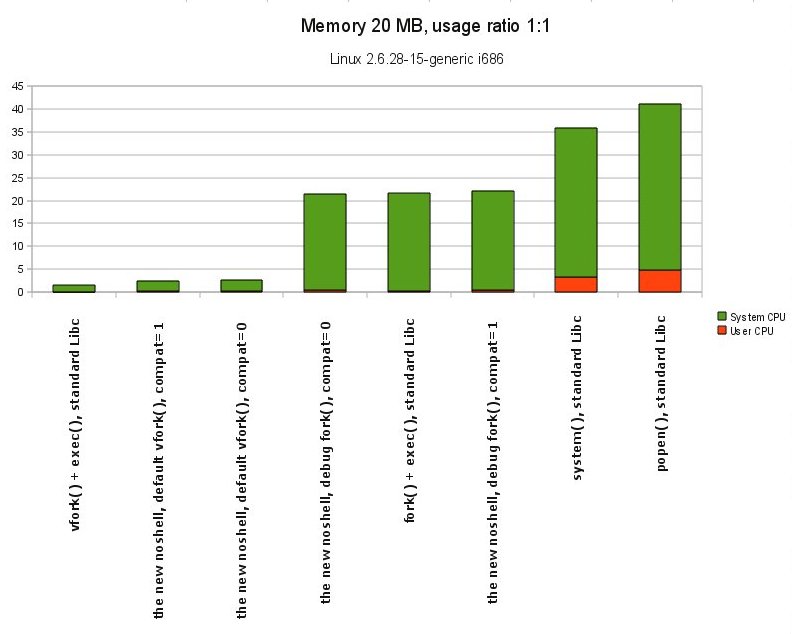
I’ve done several tests on how fast is popen_noshell() compared to popen() and even a bare fork()+exec(). All the results are similar and therefore I’m publishing only one of the benchmark results:
Tested functions on Linux - popen_noshell(), fork(), vfork(), popen(), system()


Here are the resources which you can download:

I will appreciate any comments on the library.


2 Comments

fork() gets slower as parent process uses more memory

Background information
Forking is an important, fundamental part of Unix, critical to the support of its design philosophy. For example, if a process wants to execute a command, it has to fork() a child process which then immediately calls exec(). And since the philosophy of Unix involves executing many small commands/programs, in order to achieve something meaningful, it turns out that fork() is called pretty often.

There are two main fork() patterns when a parent process wants to execute a command:

  • The parent does not need to communicate with the child process in any way – the child process executes, and the parent gets its exit code back. No input/output with the child is done at all, only the inital command line arguments are passed.
  • The parent needs to communicate with the child process – either it needs to supply something at the standard input or some other file descriptor of the child, or it wants to get some information from the standard output or some other file descriptor of the child, or both.

For the case when there is no communication involved, Unix guys developed the vfork() call. It is a very light-weight version of fork(), very close to threading. The gotcha here is that a child process which was created by vfork() cannot modify any variables in its space at all or do something else, because it has no own stack. The child process is only allowed to call exec() right after it was born, nothing more. This speeds up the usual fork()-then-exec() model, because often the parent does not need to communicate with the child process – the parent just wants the command executed with the given command line arguments.

For all other cases when the parent communicates with the child internally using file descriptors (anonymous pipes, etc.), the standard fork() system call is used.

Problem definition
It turns out that when the parent process allocates some memory, the fork() call takes longer to execute if a bigger amount of this allocated memory is being used, that is – if the parent process writes something there. Linux and probably the other Unix systems employ a copy-on-write feature and don’t physically copy the allocated memory from the parent into the child process initially on each fork(). Not until the child modifies it. Nevertheless, the fork() call gets slower and slower as more and more memory is being used (not just allocated) in the parent process. It seems that even though the data of the allocated/used memory itself is not being copied, thanks to the copy-on-write feature, the internal virtual memory structures in the kernel, which hold the information about how much and what memory the parent process has allocated, are being copied in an inefficient way while the child process is being created by fork().

Currently available options
So why don’t we then just vfork() always? It is very fast. And the answer is – because we cannot communicate with the child process when it was created by vfork().

Okay, so why don’t we use threads then? They are similar to vfork(), only that the child process (thread) has its own stack and shares the data segment (allocated memory) of the parent process. We can even use these shared data variables for inter-process communication. And the answer is – because a thread cannot invoke exec() by definition. This is not supported by the threading libraries, as required by POSIX.1.

Talk to me in numbers, how slower does fork() get in regards to memory allocation and usage
Here are some benchmark results, the forking is done a few thousand times, in order to accumulate an accountable CPU time. The program which is being exec()’ed is a very tiny binary which contains only two system calls – write(“Hello world”) and then _exit(0). The benchmark results follow:

System info Allocated memory Usage ratio vfork() + exec() fork() + exec()
Linux 2.6.28-15-generic i686 20MB 1:2 (10MB) 1.49 12.08
Linux 2.6.28-15-generic i686 20MB 1:1 (20MB) 1.53 21.60
Linux 2.6.28-15-generic i686 40MB 1:2 (20MB) 1.59 21.23
FreeBSD 7.1-RELEASE-p4 i386 20MB 1:2 (10MB) 2.26 20.22
FreeBSD 7.1-RELEASE-p4 i386 40MB 1:2 (20MB) 2.44 33.94

As we can see from the test results, the vfork() call is not affected by the amount of memory usage. This does not apply for fork() though. On Linux we observe almost two times more CPU usage as the memory usage is increased twice. On FreeBSD the results are similar, only a bit better – if the memory usage is increased twice, the CPU usage of fork() is increased with 50% (vs. 100% on Linux). Even though, the difference in CPU time between the vfork() and fork() calls is significant on both operating systems – fork() is more than 1000% slower.

You can read my next article which describes a solution for Linux which allows a parent process to communicate with its child, similar to fork(), but is as fast as vfork(). The article also contains more detailed information about the benchmark tests we did, in order to populate the above table.


35 Comments

Running Debian on Bifferboard

There are three major steps in installing Debian on your Bifferboard:

  1. Kernel boot command line.
  2. Kernel installation on the Bifferboard.
  3. Rootfs installation on a USB device or an SD/MMC card.

Kernel boot command line

Since Biffboot v3.3, dated 19.July.2010, the kernel boot command line no longer specifies an external block device for the root file system. As a result of this, you need to update the boot configuration before you can boot from a USB device or an SD/MMC card. You have two options to configure the boot command line:

You need to set the kernel boot command line (“Kernel cmndline”) to:

console=uart,io,0x3f8 root=/dev/sda1 rootwait

Kernel installation on the Bifferboard

Download a pre-built kernel binary image:

The kernel is compiled with (almost) all possible modules, so your Bifferboard should be able to easily use any device supported on Debian. Once you have downloaded the kernel image, you can then upload it to the Bifferboard, as advised at the Biffboot Wiki page. You have two options to upload the kernel – via the serial port or over the ethernet. Both work well.

Example: Assuming that you have the Bifferboard SVN repository checked out in “~/biffer/svn“, you have downloaded the “vmlinuz-2.6.30.5-bifferboard-ipipe” kernel image in “/tmp“, your Bifferboard has a MAC address of “00:B3:F6:00:37:A9“, and you have connected it on the Ethernet port “eth0” of your computer, here are the commands that you would need to use:

cd ~/biffer/svn/utils
sudo ./bb_eth_upload.py eth0 00:B3:F6:00:37:A9 /tmp/vmlinuz-2.6.30.5-bifferboard-ipipe

Rootfs installation on a USB device or an SD/MMC card

Once you have the kernel “installed” on the Bifferboard and ready to boot, you need to prepare a rootfs media. This is where your Debian installation is stored and booted from. Download one of the following pre-built rootfs images (default root password is “biffroot”):

The “developer” version adds the following packages: build-essential, perl, links, manpages, manpages-dev, man-db, mc, vim. Note that for each image you will need at least 100MB more free on the rootfs media.

In order to populate the rootfs media, you have to do the following:

  1. Create one primary partition, format it as “ext3” and then mount the USB device or SD/MMC card.
  2. Extract the archive in the mounted directory.
  3. Unmount the directory.

Example: Assuming that you have the Bifferboard SVN repository checked out in “~/biffer/svn“, you have downloaded the “minimal” rootfs image in “/tmp“, and you are using an SD/MMC card under the device name “/dev/mmcblk0“, here are the commands that you would need to use:

sudo bash
mkdir /mnt/rootfs
cd ~/biffer/svn/debian/rootfs
./format-and-mount.sh /dev/mmcblk0 /mnt/rootfs
tar -jxf /tmp/debian-lenny-bifferboard-rootfs-minimal.tar.bz2 -C /mnt/rootfs
umount /mnt/rootfs
# CHANGE THE DEFAULT ROOT PASSWORD!

When you have the USB device or SD/MMC card ready and populated with the customized Debian rootfs, plug it in Bifferboard, attach a serial cable to Bifferboard, if you have one, and boot it up.

That’s it. Enjoy your Bifferboard running Debian.

Update: As already mentioned in the comments below, you would probably need to set up swap too. Here is my recipe:

# change "128" (MBytes) below to a number which suits your needs
dd if=/dev/zero of=/swapfile bs=1M count=128
mkswap /swapfile
swapon /swapfile # enables swap right away; disable with "swapoff -a"
echo '/swapfile none swap sw 0 0' >> /etc/fstab # enables swap at system boot

Using a file for swap on a 2.6 Linux kernel has the same performances as using a separate swap partition as discussed at LKML.

Update 2: As announced by Debian, Debian 5.0 (lenny) has been superseded by Debian 6.0 (squeeze). Security updates have been discontinued as of February 6th, 2012. Thus by downloading and installing the images provided here, you’re using an obsolete Debian release. If that’s not a problem for you, read on. You need to change the file “/etc/apt/sources.list” to the following using your favorite text editor:

deb http://archive.debian.org/debian lenny main contrib non-free
deb-src http://archive.debian.org/debian lenny main contrib non-free
deb http://archive.debian.org/debian-security/ lenny/updates main contrib non-free
deb-src http://archive.debian.org/debian-security/ lenny/updates main contrib non-free

P.S. If you want to build your own customized Debian rootfs image for Bifferboard – checkout the Bifferboard SVN repository and review the instructions in “debian/rootfs/images.txt“.

References:


Leave a comment

Debian rootfs installation customized for Bifferboard

Update: There are (more up-to-date) automated scripts which you can use for the below actions:

  1. You need to checkout the whole Bifferboard SVN repository.
  2. The scripts are located in the directory “/debian/rootfs“. Execute them from the checked out repository on your local computer.

First you have to mount a medium on which we are going to install the Debian system. Generally, you have two options:

  • Using a USB Flash drive:


    ## MAKE SURE THAT YOU UPDATE THIS
    $ export ROOTDEV=/dev/sdc1
    $ sudo mkfs.ext3 $ROOTDEV
    $ sudo tune2fs -c 0 -i 0 $ROOTDEV
    $ export MNTPOINT=/mnt/diskimage
    $ sudo mount $ROOTDEV $MNTPOINT

  • Using a Qemu image:


    $ export MNTPOINT=/mnt/diskimage
    $ export IMGFILE=hd0.img
    $ sudo mount -o loop,offset=32256 "$IMGFILE" $MNTPOINT

Once we have the medium mounted at $MNTPOINT, we can proceed with installing Debian there and configuring it for Bifferboard:

$ export DBS_OS_VERSION=lenny
## replace "bg." with your local archive, or just omit it
$ export DBS_LOCAL_ARCHIVE=bg.
$ sudo debootstrap --arch i386 ${DBS_OS_VERSION} $MNTPOINT/ http://ftp.${DBS_LOCAL_ARCHIVE}debian.org/debian
## ... go grab a pizza or something ... this will take a while
$ sudo cp /etc/resolv.conf $MNTPOINT/etc/
$ sudo mount proc $MNTPOINT/proc -t proc
$ sudo chroot $MNTPOINT
##
## We are now in the "chroot" environment as root
##
/# apt-get -qq update && apt-get install wget
/# cd /root && wget http://bifferboard.svn.sourceforge.net/viewvc/bifferboard/debian/rootfs/include/debootstrap-postconfig.sh
/root# chmod +x debootstrap-postconfig.sh && ./debootstrap-postconfig.sh
/root# passwd root
/root# exit
##
## Back to our machine
##
$ sudo umount $MNTPOINT/proc
$ sudo umount $MNTPOINT


Now you have a minimum Debian installation customized for Bifferboard in the following way:

  • Custom kernel for Bifferboard installed by a .deb package.
  • Ethernet interface configured as DHCP client.
  • Temporary directories /tmp and /var/tmp mounted on a RAM-disk.
  • All APT sources “main contrib non-free” enabled.
  • Serial console on ttyS0 (115200 8N1).
  • RTC (real-time clock) kernel modules blacklisted – the Bifferboard has no RTC.
  • IPv6 disabled – takes a lot of resources and we won’t use it anyway, for now.

I may add any further customizations if needed. You can always review the debootstrap-postconfig.sh script for details on what is being configured.

You can use this image/disk as a rootfs which you can boot directly on Bifferboard or try in Qemu. Note that you have to install our Debian kernel on Bifferboard prior to booting this rootfs.


Used resources:


Leave a comment

Create a Qemu image file which you can mount in both Linux and Qemu

The idea is to be able to easily manage a Qemu image outside of Qemu, natively on Linux. This can help you to alter the files on the Qemu image easily on Linux and then test the modified Qemu image on a Qemu virtual machine.

You can download an empty, formatted with Ext3 Qemu raw image at the following URL address:


There is nothing special about how you can achieve this yourself:

  • Create an empty Qemu image file.
  • Run an installation CD of Debian (or any other Linux) under Qemu and use the empty image as an available hard disk.
  • Partition and format the Qemu hard disk (resp. the Qemu image file) using the Linux installer.
  • Interrupt the Linux installer, stop Qemu, mount the Qemu image on Linux and clean it up.

You can achieve the above using the following commands:

# make sure to update the .iso URL if needed
$ wget http://cdimage.debian.org/debian-cd/5.0.3/i386/iso-cd/debian-503-i386-netinst.iso
$ qemu-img create hd0.img 2G
$ qemu -hda hd0.img -cdrom debian-503-i386-netinst.iso -boot d
# continue with the installation to the point where you can set up the partitions
# set up a primary partition using the entire disk space, do not set up a swap partition; save changes to disk and continue
# interrupt the installation (for example from the second console by executing "halt"), stop the virtual machine, we will not need it any further
$ sudo mkdir -p /mnt/diskimage
$ sudo mount -o loop,offset=32256 hd0.img /mnt/diskimage
$ sudo rm -r /mnt/diskimage/*
$ sudo mkdir -m 0700 '/mnt/diskimage/lost+found'
$ sudo umount /mnt/diskimage

Now we have an empty Qemu image which we can mount in both Linux and Qemu.

Here is an example on how to mount this image in Qemu:

qemu -usb -usbdevice disk:hd0.img

Do not use the image simultaneously as Linux mount and Qemu hard disk.


Used resources:


Leave a comment

Build a Debian Linux kernel for Bifferboard as .deb packages

In my previous article I explained why and how to build a very small Linux kernel with all possible modules enabled which would help us to run a standard Debian installation on Bifferboard.

You can download the already built .deb packages for Debian “lenny” at the following addresses:

On my Bifferboard, I use the following Kernel command line to boot this kernel:

rootwait root=/dev/sda1 console=uart,io,0x3f8

For Qemu, because of some USB mass-storage emulation issues, the line looks like:

rootwait root=/dev/sda1 console=uart,io,0x3f8 irqpoll


Update: There are (more up-to-date) automated scripts which you can use for the below actions:

  • You need to checkout the whole Bifferboard SVN repository.
  • The scripts are located in the directory “/debian/kernel“. Execute the “build.sh” script from the checked out repository on your local computer, on a Debian “lenny” system.

If you want to build the packages yourself, you need to execute the following commands on a Debian “lenny” machine (a virtual machine or a chroot()’ed installation work too):

famzah@FURNA:~$ sudo apt-get install kernel-package fakeroot build-essential ncurses-dev tar patch
famzah@FURNA:~$ export KVERSION=2.6.30.5
famzah@FURNA:~$ rm -rf /tmp/tmpkern-$KVERSION
famzah@FURNA:~$ mkdir /tmp/tmpkern-$KVERSION
famzah@FURNA:~$ cd /tmp/tmpkern-$KVERSION && wget http://www.kernel.org/pub/linux/kernel/v2.6/linux-$KVERSION.tar.bz2
famzah@FURNA:/tmp/tmpkern-2.6.30.5$ tar -xjf linux-$KVERSION.tar.bz2
famzah@FURNA:/tmp/tmpkern-2.6.30.5$ sudo mkdir -p /usr/src/bifferboard && sudo chown $USER /usr/src/bifferboard
famzah@FURNA:/tmp/tmpkern-2.6.30.5$ mv linux-$KVERSION /usr/src/bifferboard/
famzah@FURNA:/tmp/tmpkern-2.6.30.5$ cd /usr/src/bifferboard/linux-$KVERSION
famzah@FURNA:/usr/src/bifferboard/linux-2.6.30.5$ wget 'http://www.famzah.net/download/bifferboard/obsolete/bifferboard-2.6.30.5-12.patch' -O bifferboard-2.6.30.5-12.patch
famzah@FURNA:/usr/src/bifferboard/linux-2.6.30.5$ patch --quiet -p1 < bifferboard-2.6.30.5-12.patch
famzah@FURNA:/usr/src/bifferboard/linux-2.6.30.5$ wget http://www.famzah.net/download/bifferboard/obsolete/build-biff-kernel-2.6.30.5-deb.sh
famzah@FURNA:/usr/src/bifferboard/linux-2.6.30.5$ chmod +x build-biff-kernel-2.6.30.5-deb.sh
famzah@FURNA:/usr/src/bifferboard/linux-2.6.30.5$ ./build-biff-kernel-2.6.30.5-deb.sh
# When "make menuconfig" is displayed, just EXIT and SAVE the configuration.
#
# After the build, you can find the two .deb packages in "/usr/src/bifferboard".


Used resources:


Leave a comment

Build a very small Linux kernel with all possible modules enabled

…and still be able to mount a root file-system stored on a USB mass-storage.

The idea is to build a very small kernel with the bare minimum compiled-in and all the rest as modules which are stored on the “rootfs” device. Once the “rootfs” device has been mounted by the kernel, the kernel can load any additional modules from there. Therefore, our kernel has the following compiled-in features:

  • device drivers for the “rootfs”: USB mass-storage.
  • File-systems: ext3.
  • Misc: BSD process accounting, /proc support, inotify support, NO initrd (we do not need one as we can mount the “rootfs” device directly), NO compiled-in wireless support (only by modules, thus you cannot download a “rootfs” over-the-air by PXE, for example), NO swap support (Bifferboard I/O is too slow for swapping).
  • Size: very small, only 918224 bytes.

Why would someone need such a kernel?
The size of the bootable kernel image (+the initrd ramdisk, if any) on a Bifferboard single-chip-computer is limited to:

  • 974848 bytes with Biffboot v2.0
  • 983040 bytes with BiffBoot v1.X

Furthermore, some patches and special configuration is required for the RDC chip which is the heart of the system. The creator of Bifferboard has done this for us already – he developed the patch and created a minimal config for the 2.6.30.5 Linux kernel.

In order to merge the Bifferboard minimal kernel config with a config where all modules are enabled, I do the following:

  • Make a kernel config with all possible modules enabled by executing “make allmodconfig“. The problem with this config is that it has every possible option selected as “Yes”, not only the modules. Therefore, I substitute every “Yes” (which is not a module) to “No” by executing “perl -pi -e ‘s/=y/=n/g’ .config“. This way I have only config entries which say “CONFIG_SOME_OPTION=m”.
  • Download the other minimal kernel config which I want to merge with priority over the “all modules config”. I make a “grep =y .config-biff > .config-biff-yes“. This way I leave only the “Yes” selected kernel config options, nothing more.
  • Finally, I can merge the config files into one by concatenating them. The file which is concatenated last has the most priority. This is how Kconfig merges the config lines and resolves conflicts or redefinitions of the same kernel option.
  • There is however a problem with this automatic way of generating and merging an all-modules kernel config – there are sections in the kernel config which add no additional code to the kernel (thus add no space either) but they “hide” their child sub-sections. One has to go through the kernel menu manually and select with “Yes” every menu option which has a sub-menu associated with it. You can easily recognize such menu options by the “—>” ending after their menu title. I’ve created a third config which is also being merged as last which selects all such options as “Yes” (multiple CONFIG_SUBMENU_EXAMPLE=y).
  • If you want to overwrite anything at the very end, you can create a fourth config file and merge it as very last.

Here is a Bash script which does what I’ve currently described: http://www.famzah.net/download/bifferboard/obsolete/build-biff-kernel-2.6.30.5-deb.sh.

Note that when you have no initrd and boot from a USB mass-storage device, you have to add “rootdelay=30” (or less) to your kernel command line. It takes some time for the USB mass-storage devices to get initialized. If there is no “rootdelay” option specified, the kernel tries to mount the “rootfs” device immediately which ends up in Kernel panic – not syncing: VFS: Unable to mount root fs. This very useful article describing the initial RAM disk (initd) in detail helped me to find out why the original Ubuntu kernel+initrd gave no kernel panic and was able to mount the root file-system from my USB stick, but at the very same time my custom kernel couldn’t do it. I did some initrd debugging and found out that it simulates the kernel command line option “rootdelay” – it polls if the “rootfs” device has been detected, every 0.1 seconds.

UPDATE: The option “rootwait” is what I was actually looking for. It is similar to “rootdelay=NN”, only that it waits forever for a root device and continues with the boot immediately after the root device is found, thus the kernel wastes no time in just waiting for “NN” seconds to elapse.

You can read my next article which gives detailed instructions on how to build a kernel suitable for Bifferboard and package it as .deb files.