
/contrib/famzah

Enthusiasm never stops


Leave a comment

Speed up SSH connections by splitting known_hosts per host

For a while, my mpssh runs were getting slow. I use it daily against about 1400 Linux hosts, and a trivial true command across 999 parallel SSH sessions had drifted to roughly two minutes. During the run, my desktop would get a sharp CPU spike, and the mpssh executions started interfering with interactive work. I started wondering whether newer OpenSSH packages, the growing host count, or even ssh-agent were to blame.

It turned out that the biggest win was splitting my 2.1 MB ~/.ssh/known_hosts into one small file per host. The ssh_config(5) documentation says that UserKnownHostsFile accepts runtime tokens such as %h, so a path like ~/.ssh/known_hosts_single/%h is valid.

I did not prove the exact lookup algorithm OpenSSH uses internally, so I will not speculate too much there. But the benchmark was clear enough: once I stopped feeding SSH a monolithic known_hosts file, the runtime dropped from about two minutes to about thirty seconds with the same host list and the same default 50 ms delay between forks.

Benchmark Summary

SetupBest timeWhat it showed
Baseline, default SSH behavior, monolithic known_hosts, parallelism of 9992m03.482sThis was the original pain point.
Per-host known_hosts, default 50 ms delay26.840sAbout 4.6x faster without any aggressive client-side tuning.
Same per-host setup, but 0 ms delay16.228sFaster again, but much harsher on local CPU.
Per-host setup plus agent/key experimentsRoughly 27-32s at 50 msDisabling ssh-agent or switching RSA to Ed25519 did not materially change the result.

The spawn delay also mattered, but in a different way. Reducing it from the default 50 ms to 5 ms or 0 ms shaved off more seconds, but it also pushed much harder on local CPU. In one 0 ms run, CPU idle dropped to 0% for about five seconds. That is why I kept the default 50 ms in normal use. Getting down to about 27 to 30 seconds while keeping the machine responsive was already good enough.

I also chased a couple of dead ends. I saw ssh-agent spike to 100% CPU often enough that it looked suspicious, so I tested a temporary passwordless key and also forced IdentityAgent=none. I also tried Ed25519 instead of my older RSA key. Neither changed the overall picture in a meaningful way.

My ~/.ssh/config is also fairly large. I even tried splitting the alias-heavy part into a separate include file of about 78 KB, guarded by a Match originalhost stanza, because mpssh uses the full hostnames and those aliases are irrelevant for the benchmarked hosts. That did not help either. OpenSSH still reads the included file in order to parse it, even if it does not end up matching the current host. I still keep that Match stanza around, though, because it may become useful in the future if OpenSSH ever starts handling this case more efficiently.

# mpssh uses full hostnames, so this alias file is irrelevant here
Match originalhost ??,???,????
Include config.short-host-aliases

How To Split known_hosts Per Host

I wrote a small helper script for this and put it in the mpssh repository. The script reads hostnames from standard input or from a file, resolves hostnames to IP addresses, extracts matching entries from the monolithic file with ssh-keygen -F, and writes one small file per host into ~/.ssh/known_hosts_single. It also handles custom-port entries such as [git.example.com]:7999.

If HashKnownHosts was enabled in your SSH configuration, converting usually requires a plain-text list of all your servers, because the monolithic file does not contain readable hostnames anymore. If HashKnownHosts was disabled, you can usually extract that list from the existing monolithic known_hosts file with a simple cat and awk pipeline.

Here is the migration flow I used, rewritten with generic hostnames and paths:

mv ~/.ssh/known_hosts ~/.ssh/known_hosts.monolith
mkdir -p ~/.ssh/known_hosts_single

python3 known_hosts_single/convert.py \
  --known-hosts-file ~/.ssh/known_hosts.monolith \
  --input-file ./servers.list \
  --progress

If you want to test a couple of entries first, the script can also read from standard input:

printf '%s\n' example.com '[git.example.com]:7999' 203.0.113.10 | \
python3 known_hosts_single/convert.py \
  --known-hosts-file ~/.ssh/known_hosts.monolith \
  --progress

Then edit ~/.ssh/config so that SSH uses the per-host files. I explicitly disable GlobalKnownHostsFile because my setup does not rely on a system-wide known_hosts file. If yours does, do not copy that line. I also set HashKnownHosts no, because once the host identity is already visible in the %h filename, hashing the contents of the tiny per-host file no longer buys much. I kept strict host key checking enabled because this was a performance optimization, not a security shortcut:

Host *
    GlobalKnownHostsFile none
    UserKnownHostsFile ~/.ssh/known_hosts_single/%h
    HashKnownHosts no
    StrictHostKeyChecking yes

The important part is %h. SSH expands it to the target hostname, so each connection only opens the tiny file for that host instead of making every connection consult one large shared file.

Reproducing The Benchmark

For an apples-to-apples comparison, these are the important commands. I kept -p 999 because that was the clean baseline I measured before and after the change:

# Baseline
time mpssh -p 999 -u root -f ./servers.list true

# Same host list, but with per-host known_hosts files
time mpssh -p 999 -u root -f ./servers.list \
  -O 'o UserKnownHostsFile=~/.ssh/known_hosts_single/%h' \
  -O 'o StrictHostKeyChecking=yes' \
  true

# More aggressive spawning
time mpssh -p 999 -d 0 -u root -f ./servers.list \
  -O 'o UserKnownHostsFile=~/.ssh/known_hosts_single/%h' \
  -O 'o StrictHostKeyChecking=yes' \
  true

If you want to experiment further, mpssh also lets you adjust the delay between SSH forks with -d MSEC. In my case, lower values were useful for benchmarks but not for everyday use because they pushed too much CPU pressure back onto the local machine.

One more thing worth keeping in mind is ControlMaster with ControlPersist. That OpenSSH feature can reuse an already established connection to the same host for later sessions. I have not benchmarked it for this workload, but for repeated connections to the same machines it has the potential to reduce SSH connection setup overhead a lot.

Long story short, if you fan out SSH connections to hundreds or thousands of hosts, do not assume that the network or the private key type is the only thing worth checking. A large known_hosts file can be enough to waste more than a minute and a lot of CPU per batch. Splitting it per host kept host key verification in place and made mpssh feel fast again.

5 Comments

OpenSSH ciphers performance benchmark (update 2015)

It’s been five years since the last OpenSSH ciphers performance benchmark. There are two fundamentally new things to consider, which also gave me the incentive to redo the tests:

  • Since OpenSSH version 6.7 the default set of ciphers and MACs has been altered to remove unsafe algorithms. In particular, CBC ciphers and arcfour* are disabled by default. This has been adopted in Debian “Jessie”.
  • Modern CPUs have hardware acceleration for AES encryption.

I tested five different platforms having CPUs with and without AES hardware acceleration, different OpenSSL versions, and running on different platforms including dedicated servers, OpenVZ and AWS.

Since the processing power of each platform is different, I had to choose a criteria to normalize results, in order to be able to compare them. This was a rather confusing decision, and I hope that my conclusion is right. I chose to normalize against the “arcfour*”, “blowfish-cbc”, and “3des-cbc” speeds, because I doubt it that their implementation changed over time. They should run equally fast on each platform because they don’t benefit from the AES acceleration, nor anyone bothered to make them faster, because those ciphers are meant to be marked as obsolete for a long time.

A summary chart with the results follow:
openssh-ciphers-performance-2015-chart

You can download the raw data as an Excel file. Here is the command which was run on each server:

# uses "/root/tmp/dd.txt" as a temporary file!
for cipher in aes128-cbc aes128-ctr aes128-gcm@openssh.com aes192-cbc aes192-ctr aes256-cbc aes256-ctr aes256-gcm@openssh.com arcfour arcfour128 arcfour256 blowfish-cbc cast128-cbc chacha20-poly1305@openssh.com 3des-cbc ; do
	for i in 1 2 3 ; do
		echo
		echo "Cipher: $cipher (try $i)"
		
		dd if=/dev/zero bs=4M count=1024 2>/root/tmp/dd.txt | pv --size 4G | time -p ssh -c "$cipher" root@localhost 'cat > /dev/null'
		grep -v records /root/tmp/dd.txt
	done
done

We can draw the following conclusions:

  • Servers which run a newer CPU with AES hardware acceleration can enjoy the benefit of (1) a lot faster AES encryption using the recommended OpenSSH ciphers, and (2) some AES ciphers are now even two-times faster than the old speed champion, namely “arcfour”. I could get those great speeds only using OpenSSL 1.0.1f or newer, but this may need more testing.
  • Servers having a CPU without AES hardware acceleration still get two-times faster AES encryption with the newest OpenSSH 6.7 using OpenSSL 1.0.1k, as tested on Debian “Jessie”. Maybe they optimized something in the library.

Test results may vary (a lot) depending on your hardware platform, Linux kernel, OpenSSH and OpenSSL versions.


2 Comments

Securely avoid SSH warnings for changing IP addresses

If you have servers that change their IP address, you’ve probably already been used to the following SSH warning:

The authenticity of host '176.34.91.245 (176.34.91.245)' can't be established.
...
Are you sure you want to continue connecting (yes/no)? yes

Besides from being annoying, it is also a security risk to blindly accept this warning and continue connecting. And be honest — almost none of us check the fingerprint in advance every time.

A common scenario for this use case is when you have an EC2 server in Amazon AWS which you temporarily stop and then start, in order to cut costs. I have a backup server which I use in this way.

In order to securely avoid this SSH warning and still be sure that you connect to your trusted server, you have to save the fingerprint in a separate file and update the IP address in it every time before you connect. Here are the connect commands, which you can also encapsulate in a Bash wrapper script:

IP=176.34.91.245 # use an IP address here, not a hostname
FPFILE=~/.ssh/aws-backup-server.fingerprint

test -e "$FPFILE" && perl -pi -e "s/^\S+ /$IP /" "$FPFILE"
ssh -o StrictHostKeyChecking=ask -o UserKnownHostsFile="$FPFILE" root@$IP

Note that the FPFILE is not required to exist on the first SSH connect. The first time you connect to the server, the FPFILE will be created when you accept the SSH warning. Further connects will not show an SSH warning or ask you to accept the fingerprint again.


Leave a comment

Secure NAS on Bifferboard running Debian

This NAS solution uses OpenSSH for secure transport over a TCP connection, and NFS to mount the volume on your local computer. The hardware of the NAS server is the low-cost Bifferboard.

I’m using an external hard disk via USB which is partitioned in two parts – /dev/sda1 (1GB) and the rest in /dev/sda2. Once you have installed Debian on Bifferboard, here are the commands which further transform your Bifferboard into a secure NAS:

apt-get update
apt-get -y install nfs-kernel-server

vi /etc/default/nfs-common 
  # update: STATDOPTS='--port 2231'
vi /etc/default/nfs-kernel-server 
  # update: RPCMOUNTDOPTS='-p 2233'

mkdir -m 700 /root/.ssh
  # add your public key for "root" in /root/.ssh/authorized_keys

echo '/mnt/storage 127.0.0.1(rw,no_root_squash,no_subtree_check,insecure,async)' >> /etc/exports
mkdir /mnt/storage
chattr +i /mnt/storage # so that we don't accidentally write there without a mounted volume

cat > /etc/rc.local <<EOF
#!/bin/bash

# allow only SSH access via the network
/sbin/iptables -P FORWARD DROP
/sbin/iptables -P INPUT DROP
/sbin/iptables -A INPUT -i lo -j ACCEPT
/sbin/iptables -A INPUT -p tcp --dport 22 -j ACCEPT
/sbin/iptables -A INPUT -p tcp -m state --state ESTABLISHED -j ACCEPT # TCP initiated by server
/sbin/iptables -A INPUT -p udp -m state --state ESTABLISHED -j ACCEPT # DNS traffic

# mount the storage volume here, so that any errors with it don't interfere with the system startup
/bin/mount /dev/sda2 /mnt/storage
/etc/init.d/nfs-kernel-server restart
EOF

# allow only public key authentication
fgrep -i -v PasswordAuthentication /etc/ssh/sshd_config > /tmp/sshd_config && \
  mv -f /tmp/sshd_config /etc/ssh/sshd_config && \
  echo 'PasswordAuthentication no' >> /etc/ssh/sshd_config

reboot

There are two things you should consider with this setup:

  1. You must trust the “root” user who mounts the directory! They have full shell access to your NAS.
  2. A not-so-strong SSH encryption cipher is used, in order to improve the performance of the SSH transfer.

On the machine which is being backed up, I use the following script which mounts the NAS volume, starts the rsnapshot backup process and finally unmounts the NAS volume:

#!/bin/bash
set -u

HOST='192.168.100.102'
SSHUSER='root'
REMOTEPORT='22'
REMOTEDIR='/mnt/storage'
LOCALDIR='/mnt/storage'
SSHKEY='/home/famzah/.ssh/id_rsa-home-backups'

echo "Mounting NFS volume on $HOST:$REMOTEPORT (SSH-key='$SSHKEY')."
N=0
for port in 2049 2233 ; do
	N=$(($N + 1))
	LPORT=$((61000 + $N))
	ssh -f -i "$SSHKEY" -c arcfour128 -L 127.0.0.1:"$LPORT":127.0.0.1:"$port" -p "$REMOTEPORT" "$SSHUSER@$HOST" sleep 600d
	echo "Forwarding: $HOST: Local port: $LPORT -> Remote port: $port"
done
sudo mount -t nfs -o noatime,nfsvers=2,proto=tcp,intr,rw,bg,port=61001,mountport=61002 "127.0.0.1:$REMOTEDIR" "$LOCALDIR"

echo "Doing backup."
time sudo /usr/bin/rsnapshot weekly

echo "Unmounting NFS volume and closing SSH tunnels."
sudo umount "$LOCALDIR"
for pid in $(ps axuww|grep ssh|grep 6100|grep arcfour|grep -v grep|awk '{print $2}') ; do
	kill "$pid" # possibly dangerous...
done

Update, 29/Sep/2010 – performance tunes:

  • Added “async” in “/etc/exports”.
  • Removed the “rsize=8192,wsize=8192” mount options – they are auto-negotiated by default.
  • Added the “noatime” mount option.
  • Put the SSH username in a variable.

Resources:


23 Comments

OpenSSH ciphers performance benchmark

💡 Please review the newer tests.


Ever wondered how to save some CPU cycles on a very busy or slow x86 system when it comes to SSH/SCP transfers?

Here is how we performed the benchmarks, in order to answer the above question:

  • 41 MB test file with random data, which cannot be compressed – GZip makes it only 1% smaller.
  • A slow enough system – Bifferboard. Bifferboard CPU power is similar to a Pentium @ 100Mhz.
  • The other system is using a dual-core Core2 Duo @ 2.26GHz, so we consider it fast enough, in order not to influence the results.
  • SCP file transfer over SSH using OpenSSH as server and client.

As stated at the Ubuntu man page of ssh_config, the OpenSSH client is using the following Ciphers (most preferred go first):

aes128-ctr,aes192-ctr,aes256-ctr,arcfour256,arcfour128,
aes128-cbc,3des-cbc,blowfish-cbc,cast128-cbc,aes192-cbc,
aes256-cbc,arcfour

In order to examine their performance, we will transfer the test file twice using each of the ciphers and note the transfer speed and delta. Here are the shell commands that we used:

for cipher in aes128-ctr aes192-ctr aes256-ctr arcfour256 arcfour128 aes128-cbc 3des-cbc blowfish-cbc cast128-cbc aes192-cbc aes256-cbc arcfour ; do
        echo "$cipher"
        for try in 1 2 ; do
                scp -c "$cipher" test-file root@192.168.100.102:
        done
done

You can review the raw results in the “ssh-cipher-speed-results.txt” file. The delta difference between the one and same benchmark test is within 16%-20%. Not perfect, but still enough for our tests.

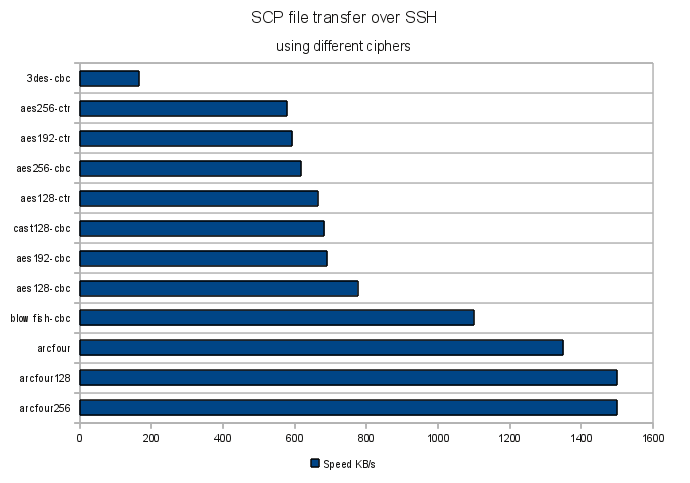
Here is a chart which visualizes the results:

The clear winner is Arcfour, while the slowest are 3DES and AES. Still the question if all OpenSSH ciphers are strong enough to protect your data remains.

It’s worth mentioning that the results may be architecture dependent, so test for your platform accordingly.
Also take a look at the below comment for the results of the “i7s and 2012 xeons” tests.


Resources: