/contrib/famzah

Enthusiasm never stops


4 Comments

Bash: Split a string into columns by white-space without invoking a subshell

The classical approach is:

RESULT="$(echo "$LINE"| awk '{print $1}')" # executes in a subshell 

Processing thousands of lines this way however fork()’s thousands of processes, which affects performance and makes your script CPU hungry.

Here is a more efficient way to do it:

LINE="col0 col1  col2     col3  col4      "
COLS=()

for val in $LINE ; do
        COLS+=("$val")
done

echo "${COLS[0]}"; # prints "col0"
echo "${COLS[1]}"; # prints "col1"
echo "${COLS[2]}"; # prints "col2"
echo "${COLS[3]}"; # prints "col3"
echo "${COLS[4]}"; # prints "col4"

If you want to split not by white-space but by any other character, you can temporarily change the IFS variable which determines how Bash recognizes fields and word boundaries.

P.S. For the record, here is the old solution:

#
# OLD CODE
# Update: Aug/2016: I've encountered a bug in Bash where this splitting doesn't work as expected! Please see the comments below.
#

# Here is the effective solution which I found with my colleagues at work:

COLS=( $LINE ); # parses columns without executing a subshell
RESULT="${COLS[0]}"; # returns first column (0-based indexes)

# Here is an example:

LINE="col0 col1  col2     col3  col4      " # white-space including tab chars
COLS=( $LINE ); # parses columns without executing a subshell

echo "${COLS[0]}"; # prints "col0"
echo "${COLS[1]}"; # prints "col1"
echo "${COLS[2]}"; # prints "col2"
echo "${COLS[3]}"; # prints "col3"
echo "${COLS[4]}"; # prints "col4"


Leave a comment

Re-compile a Debian kernel as a .deb package

Here is my success story on how to re-compile a Debian/Ubuntu kernel, in order to enable or tune kernel features which are not available as kernel modules:

# Install required software for the kernel compilation
apt-get install fakeroot build-essential devscripts
apt-get build-dep linux-image-$(uname -r) # make sure you have the appropriate "deb-src" in "sources.list"
apt-get install libncurses5-dev # required for "make menuconfig"
apt-get install ccache # to re-compile the kernel faster (http://wiki.debian.org/OverridingDSDT)

# Prepare some environent variables for our architecture, for later use
ARCH=$(uname -r|cut -d- -f3)
CPUCNT=$(( $(cat /proc/cpuinfo |egrep ^processor |wc -l) * 2))

# Get the kernel sources
rm -rf /root/krebuild && mkdir /root/krebuild
cd /root/krebuild
apt-get source linux-image-$(uname -r)
cd linux-$(uname -r|cut -d- -f1|cut -d. -f1-2)* # cd linux-3.2.20

# http://kernel-handbook.alioth.debian.org/ch-common-tasks.html # 4.2.5 Building packages for one flavour
# The target in this command has the general form of target_arch_featureset_flavour. Replace the featureset with none if you do not want any of the extra featuresets.

# Prepare a Debian kernel to compile
fakeroot make -f debian/rules.gen setup_${ARCH}_none_${ARCH} >/dev/null
cd debian/build/build_${ARCH}_none_${ARCH}
make menuconfig # make any kernel config changes now
cd ../../..

# No debug info => faster kernel build
perl -pi -e 's/debug-info:\s+true/debug-info: false/' debian/config/$ARCH/defines
echo binary-arch_${ARCH}_none_${ARCH}
vi debian/rules.gen # find the Make target and change DEBUG and DEBUG_INFO to False/n respectively

# Bugfix: http://lists.debian.org/debian-user/2008/02/msg01455.html
vi debian/bin/buildcheck.py +51 # add "return 0" right after "def __call__(self, out):"

# Compile the kernel
time DEBIAN_KERNEL_USE_CCACHE=true DEBIAN_KERNEL_JOBS=$CPUCNT \
	fakeroot make -j$CPUCNT -f debian/rules.gen binary-arch_${ARCH}_none_${ARCH} > compile-progress.log

# If needed, the linux-headers-version-common binary package (http://kernel-handbook.alioth.debian.org/ch-common-tasks.html -> 4.2.5)
#fakeroot make -j$CPUCNT -f debian/rules.gen binary-arch_${ARCH}_none_real

# Install the newly compiled kernel
cd ..
dpkg -i linux-image-*.deb
#dpkg -i linux-headers-*.deb # only if you need them and/or have them installed already


Leave a comment

Perl Net::Ping not working properly with ICMP by default

If you tried to ping a host with Perl Net::Ping using the ICMP protocol and that failed, even though the “ping” command-line utility can ping the host, you’re not alone 🙂 I had the same problem and it turned out to be due to the fact that Net::Ping by default sends no DATA in the ICMP request and thus its requests are rather short and non-standard. Here are some tcpdump examples:

  • Net::Ping with ICMP protocol, everything else is defaults: “$p = new Net::Ping(‘icmp’)“, no replies from remote host, note that the length is just 8 bytes:
    12:29:02.898083 IP source-addr > source-addr: ICMP echo request, id 2194, seq 41, length 8
    12:29:03.711595 IP source-addr > dest-addr: ICMP echo request, id 2194, seq 42, length 8
    
  • Linux “ping” command-line utility, remote host replies accordingly, the length is 64 bytes total:
    12:30:18.278865 IP source-addr > dest-addr: ICMP echo request, id 2488, seq 1, length 64
    12:30:18.289922 IP dest-addr > source-addr: ICMP echo reply, id 2488, seq 1, length 64
    12:30:18.790610 IP source-addr > dest-addr: ICMP echo request, id 2488, seq 2, length 64
    12:30:18.811029 IP dest-addr > source-addr: ICMP echo reply, id 2488, seq 2, length 64
    
  • Net::Ping with ICMP protocol with user-defined length, “$p = new Net::Ping(‘icmp’, 1, 56)“, remote host replies accordingly, the length is 64 bytes total:
    12:30:48.377496 IP source-addr > dest-addr: ICMP echo request, id 2488, seq 6, length 64
    12:30:48.433690 IP dest-addr > source-addr: ICMP echo reply, id 2488, seq 6, length 64
    12:30:48.934310 IP source-addr > dest-addr: ICMP echo request, id 2488, seq 7, length 64
    12:30:48.946152 IP dest-addr > source-addr: ICMP echo reply, id 2488, seq 7, length 64
    

Bottom line is that if you are going to use Net::Ping with ICMP, specify 56 for the “bytes” parameter when creating an instance of the Net::Ping object. This way you will be sending standard ICMP requests with total length of 64 bytes.


2 Comments

Securely avoid SSH warnings for changing IP addresses

If you have servers that change their IP address, you’ve probably already been used to the following SSH warning:

The authenticity of host '176.34.91.245 (176.34.91.245)' can't be established.
...
Are you sure you want to continue connecting (yes/no)? yes

Besides from being annoying, it is also a security risk to blindly accept this warning and continue connecting. And be honest — almost none of us check the fingerprint in advance every time.

A common scenario for this use case is when you have an EC2 server in Amazon AWS which you temporarily stop and then start, in order to cut costs. I have a backup server which I use in this way.

In order to securely avoid this SSH warning and still be sure that you connect to your trusted server, you have to save the fingerprint in a separate file and update the IP address in it every time before you connect. Here are the connect commands, which you can also encapsulate in a Bash wrapper script:

IP=176.34.91.245 # use an IP address here, not a hostname
FPFILE=~/.ssh/aws-backup-server.fingerprint

test -e "$FPFILE" && perl -pi -e "s/^\S+ /$IP /" "$FPFILE"
ssh -o StrictHostKeyChecking=ask -o UserKnownHostsFile="$FPFILE" root@$IP

Note that the FPFILE is not required to exist on the first SSH connect. The first time you connect to the server, the FPFILE will be created when you accept the SSH warning. Further connects will not show an SSH warning or ask you to accept the fingerprint again.


Leave a comment

iSCSI-over-Internet performance notes

I recently played a bit with iSCSI over Internet, in order to design and implement the Locally encrypted secure remote backup over Internet.

My initial impression was that iSCSI over Internet is not usable as a backup device even though my Internet connection is relatively fast — a simple ext4 file-system format took about 24 minutes. I though that the connection latency is killing the performance. Well, I was wrong. Even after making latency two times lower by working on a server which was geographically closer, the ext4 format still took 24 minutes.

Eventually I did some tests and analysis, and finally started to use the iSCSI over Internet volume for backup purposes — and it works flawlessly so far.

Ext4 format benchmark

It turns out that it’s not the latency but my upload bandwidth which was slowing things down:

  • 1 Mbit/s upload Internet connection and Ping latency of 75 ms:
    • Time: 24 minutes.
    • Average transfer rates snapshot:
      • Total rates: 967.7 kbits/sec (212.6 packets/sec).
      • Incoming rates: 83.0 kbits/sec (92.8 packets/sec).
      • Outgoing rates: 884.6 kbits/sec (119.8 packets/sec).
    • About 200 MBytes outgoing transfer; only 12 MBytes incoming transfer (no SSH tunnel compression).
    • About 200.000 packets sent and about 130.000 received.
  • 3 Mbit/s upload Internet connection and Ping latency of 75 ms:
    • Time: 8 minutes.
    • Average transfer rates snapshot:
      • Total rates: 2580.0 kbits/sec (417.8 packets/sec).
      • Incoming rates: 128.5 kbits/sec (149.6 packets/sec).
      • Outgoing rates: 2451.5 kbits/sec (268.2 packets/sec).
    • About 160 MBytes outgoing transfer; only 9 MBytes incoming transfer (with SSH tunnel compression).
    • About 140.000 packets sent and about 80.000 received.

I know I’m missing two tests with and without SSH tunnel compression but it seems compression doesn’t make such a difference. It’s upload speed which affects the total completion time.

File copy benchmark

All tests were done without SSH compression and we make the same conclusion — it is bandwidth which affects the total completion time:

  • 1 Mbit/s upload Internet connection and Ping latency of 75 ms:
    • SSH direct file copy to server: 100 seconds (11 MBytes file).
    • File copy to an iSCSI mounted file-system: 105 seconds.
  • 3 Mbit/s upload Internet connection and Ping latency of 75 ms:
    • SSH direct file copy to server: 39 seconds (11 MBytes file).
    • File copy to an iSCSI mounted file-system: 39 seconds.

The SSH direct file copy (SCP) transfer command was “scp testf root@172.18.0.1:/tmp/”, and the file copy command was “cp testf /mnt/ ; sync”.

Server and client load during transfer, other benchmarks

During the transfer both the client and server machines were almost idle in regards to CPU. The iSCSI block storage device on the server was not saturated even at 1%.

Note that the iSCSI target was exported via an SSH tunnel, as described here. Ping tests shown no difference between a direct server ping and a ping via the SSH tunnel.

The file copy tests were done on a regular iSCSI mounted volume, and on an iSCSI volume which was encrypted using TrueCrypt. The same speeds were achieved.

Encountered problems

During the backup runs, I got several of the following kernel messages in “dmesg”. This seems like a normal warning for the iSCSI use-case scenario:

[13200.272157] INFO: task jbd2/dm-0-8:1931 blocked for more than 120 seconds.
[13200.272164] “echo 0 > /proc/sys/kernel/hung_task_timeout_secs” disables this message.
[13200.272168] jbd2/dm-0-8 D f2abdc80 0 1931 2 0x00000000


Leave a comment

Locally encrypted secure remote backup over Internet on Linux (iSCSI / TrueCrypt)

Recently I decided to start using Amazon AWS as my backup storage but my paranoid soul wasn’t satisfied until I figured it out how to secure my private data. It’s not that I don’t trust Amazon but a lot of bad things could happen if I decided that I just copy my data to a remote server on Amazon:

  • Amazon staff would have access to my data.
  • A breach in Amazon’s systems would expose my data.
  • A breach in my remote server OS would expose my data.

One of the solutions which I considered was to encrypt my local file-system with eCryptfs but it has some issues with relatively long file names.

Finally I came out with the following working backup solution which I currently use to backup both my Windows and Linux partitions. I share the Windows root directory with the VirtualBox Linux machine and run the backup scripts from there. Here is a short explanation of the properties and features of the backup setup:

  • Locally encrypted — all files which I store on the iSCSI volume are encrypted on my personal desktop, before being sent to the remote server. This ensures that the files cannot be read by anyone else.
  • Secure — besides the local volume encryption, the whole communication is done over an SSH tunnel which secures the Internet point-to-point client-to-server communication.
  • Remote — having a remote backup ensures that even if someone breached in my house and steals my laptop and my offline backup, I can still recover my data from the remote server. Furthermore, it is more convenient to frequently backup on a remote machine, because we have Internet access everywhere now. Note that remote backups are not a substitution for offline backups.
  • Over Internet — very convenient. Of course, this backup scheme can be used in any TCP/IP network — private LAN, WAN, VPN networks, etc.

The following two articles provide detailed instructions on how to setup the backup solution:

Daily usage example

Here are the commands which I execute, in order to make a backup of my laptop. Those can be further scripted and automated if a daily or more frequent backup is required:

IP=23.21.98.10 # the public DNS IP address of the EC2 instance / server

## Execute the following, in order to mount the remote encrypted iSCSI volume:

sudo -E \
  ssh -F /dev/null \
  -o PermitLocalCommand=yes \
  -o LocalCommand="ifconfig tun0 172.18.0.2 pointopoint 172.18.0.1 netmask 255.255.255.0" \
  -o ServerAliveInterval=60 \
  -w 0:0 root@"$IP" \
  'sudo ifconfig tun0 172.18.0.1 pointopoint 172.18.0.2 netmask 255.255.255.0; hostname; echo tun0 ready'

sudo iscsiadm -m node --targetname "iqn.2012-03.net.famzah:storage.backup" --portal "172.18.0.1:3260" --login
sudo truecrypt --filesystem=none -k "" --protect-hidden=no /dev/sdb
sudo mount /dev/mapper/truecrypt1 /mnt

## You can now work on /mnt -- make a backup, copy files, etc.

ls -la /mnt

## Execute the following, in order to unmount the encrypted iSCSI volume:

sync
sudo umount /mnt
sudo truecrypt -d /dev/sdb
sudo iscsiadm -m node --targetname "iqn.2012-03.net.famzah:storage.backup" --portal "172.18.0.1:3260" --logout
# stop the SSH tunnel

Disaster recovery plan

Any backup is useless if you cannot restore your data. If your main computer is totally out, you would need the following, in order to access your backed up data:

In order to be able to log in to the remote server via SSH, you need to set up the following:

vi /etc/ssh/sshd_config # PasswordAuthentication yes
/etc/init.d/ssh restart
passwd root # set a very long password which you CAN remember

Make sure that you test if you can log in using an SSH client which does not have your SSH key and thus requires you to enter the root password manually.

I do not consider password authentication for the root account to be a security threat here. The backup server is online only during the time a backup is being made, after which I shut it down in order to save money from Amazon AWS. Furthermore, the backup has a new IP address on each new EC2 machine start, so an attacker cannot continue a brute-force attack easily, even if they started it.


Leave a comment

Locally encrypt an iSCSI volume with TrueCrypt on Linux

While this article focuses on iSCSI volumes, it also applies for regular directly attached block devices. If you are in doubt on how to export and attach an iSCSI volume over Internet, you can review the “Secure iSCSI setup via an SSH tunnel on Linux” article.

Locally encrypting a remote iSCSI volume with TrueCrypt has the following advantages:

  • You don’t need to trust the administrators of the remote machine — they cannot see your files because you are using their storage in a locally encrypted format. Thus your private data is completely safe, as long as your encryption password/key is strong enough.
  • You have the option to temporarily mount the exported iSCSI volume on the remote server, if you are the owner of the remote server and know the encryption password/key. This is handy if you want to make a local copy of a file from the backup volume without storing the encryption password on the remote server.
  • TrueCrypt is cross-platform (Windows / Mac OS X / Linux), fast, free, and open-source.

Download and install TrueCrypt

You need to install TrueCrypt wherever you are going to use it — on the client machine and optionally on the server.

# Download the distribution file from the official page:
#   http://www.truecrypt.org/downloads
# Linux -> Console-only (choose 32-bit or 64-bit depending on your local Linux installation)

tar -zxf truecrypt-7.1a-linux-console-x86.tar.gz # 32-bit in this example
sudo ./truecrypt-7.1a-setup-console-x86

truecrypt --version
#>> TrueCrypt 7.1a

Encrypt an iSCSI volume with TrueCrypt

The instructions below assume that the iSCSI volume is attached under “/dev/sdb“. The output of the commands is quoted with “#>>”.

# Encrypt the iSCSI volume
sudo truecrypt -t --create /dev/sdb --volume-type=normal --encryption=AES --hash=RIPEMD-160 --filesystem=ext4 --quick -k ""

# Mount the *volume* (there is no file-system, yet)
sudo truecrypt --filesystem=none -k "" --protect-hidden=no /dev/sdb

# Check that a new "dm-0" device with the same size appeared
cat /proc/partitions
#>> major minor  #blocks  name
#>> ...
#>> 8        16  83886080 sdb
#>> 252       0  83885824 dm-0

# Double-check that this is a TrueCrypt volume
ls -la /dev/mapper/truecrypt1
# /dev/mapper/truecrypt1 -> ../dm-0

# Create a file-system.
# This takes about 30 min for a 80 GB volume @ 1 MBit Internet connection.
sudo mkfs.ext4 /dev/mapper/truecrypt1

# You can now mount and use /dev/mapper/truecrypt1 in any mount-point, as 
# this is a regular block device with an ext4 file-system.
# Remember to unmount it when you are done.
mount /dev/mapper/truecrypt1 /mnt
ls -la /mnt
umount /mnt

# Unmount the encrypted *volume*.
# Make sure that you have ALREADY unmounted the file-system!
sync
sudo truecrypt -d /dev/xvdf

Mount an encrypted iSCSI volume locally on the remote server

The output of the commands is quoted with “#>>”.

# The local block device is "/dev/xvdf"
cat /proc/partitions 
#>> major minor  #blocks  name
#>> ...
#>>   202    80  83886080 xvdf

#
# MAKE SURE that no iSCSI clients are using the volume now
#

# Mount an encrypted volume (/dev/xvdf).
# The unencrypted volume will be presented under a different device name (/dev/mapper/truecrypt1).
sudo truecrypt --filesystem=none -k "" --protect-hidden=no /dev/xvdf

# Mount the file-system
sudo mount /dev/mapper/truecrypt1 /mnt
# Access the encrypted files
ls -la /mnt
# Unmount the file-system
sudo umount /mnt

# Unmount the encrypted volume (/dev/mapper/truecrypt1 -> /dev/xvdf).
# Make sure that you have ALREADY unmounted the file-system!
sudo truecrypt -d /dev/xvdf


Leave a comment

Secure iSCSI setup via an SSH tunnel on Linux

This article will demonstrate how to export a raw block storage device over Internet in a secure manner. Re-phrased this means that you can export a hard disk from a remote machine and use it on your local computer as it was a directly attached disk, thanks to iSCSI. Authentication and secure transport channel is provided by an SSH tunnel (more info). The setup has been tested on Ubuntu 11.10 Oneiric.

Server provisioning

Amazon AWS made it really simple to deploy a server setup in a minute:

  1. Launch a Micro EC2 instance and then install Ubuntu server by clicking on the links in the Ubuntu EC2StartersGuide, section “Official Ubuntu Cloud Guest Amazon Machine Images (AMIs)”.
  2. Create an EBS volume in the same availability zone. Attach it to the EC2 instance as “/dev/sdf” (seen as “/dev/xvdf” in latest Ubuntu versions).
  3. (optionally) Allocate an Elastic IP address and associate it with the EC2 instance.

Note that you can lower your AWS bill by buying a Reserved instance slot. Those slots are non-refundable and non-transferrable, so shop wisely. You can also stop the EC2 instance when you’re not using it and you won’t be billed for it but only for the allocated EBS volume storage.

You can use any other dedicated or virtual server which you own and can access by IP. An Amazon AWS EC2 instance is given here only as an example.

iSCSI server-side setup

Execute the following on your server (iSCSI target):

IP=23.21.98.10 # the public DNS IP address of the EC2 instance / server

# Log in to the server
ssh ubuntu@$IP
# Update your SSH key in ".ssh/authorized_keys", if needed.
sudo bash
cp /home/ubuntu/.ssh/authorized_keys /root/.ssh/ # so that we can log in directly as root

apt-get update
apt-get upgrade

apt-get install linux-headers-virtual # virtual because we're running an EC2 instance
apt-get install iscsitarget iscsitarget-dkms
perl -pi -e 's/^ISCSITARGET_ENABLE=.*$/ISCSITARGET_ENABLE=true/' /etc/default/iscsitarget

# We won't use any iSCSI authentication because the server is totally firewalled
# and we access it only using an SSH tunnel.
# NOTE: If you don't use Amazon EC2, make sure that you firewall this machine completely,
# leaving only SSH access (TCP port 22).

# update your block device location in "Path", if needed
cat >> /etc/iet/ietd.conf <<EOF
Target iqn.2012-03.net.famzah:storage.backup
   Lun 0 Path=/dev/xvdf,Type=fileio
EOF

/etc/init.d/iscsitarget restart

echo 'PermitTunnel yes' >> /etc/ssh/sshd_config
/etc/init.d/ssh restart

iSCSI client-side setup

Execute the following on your client / desktop machine (iSCSI initiator):

# Install the iSCSI client
sudo apt-get install open-iscsi

How to attach an iSCSI volume on the client

The following commands show how to attach and detach a remote iSCSI volume on the client machine. The output of the commands is quoted with “#>>”.

IP=23.21.98.10 # the public DNS IP address of the EC2 instance / server

# Establish the secure SSH tunnel to the remote server
sudo -E \
  ssh -F /dev/null \
  -o PermitLocalCommand=yes \
  -o LocalCommand="ifconfig tun0 172.18.0.2 pointopoint 172.18.0.1 netmask 255.255.255.0" \
  -o ServerAliveInterval=60 \
  -w 0:0 root@"$IP" \
  'sudo ifconfig tun0 172.18.0.1 pointopoint 172.18.0.2 netmask 255.255.255.0; hostname; echo tun0 ready'

# Make sure that we can reach the remote server via the SSH tunnel
ping 172.18.0.1

# Execute this one-time; it discovers the available iSCSI volumes
sudo iscsiadm -m discovery -t st -p 172.18.0.1
#>> 172.18.0.1:3260,1 iqn.2012-03.net.famzah:storage.backup

# Attach the remote iSCSI volume on the local machine
sudo iscsiadm -m node --targetname "iqn.2012-03.net.famzah:storage.backup" --portal "172.18.0.1:3260" --login
#>> Logging in to [iface: default, target: iqn.2012-03.net.famzah:storage.backup, portal: 172.18.0.1,3260]
#>> Login to [iface: default, target: iqn.2012-03.net.famzah:storage.backup, portal: 172.18.0.1,3260]: successful

# Check the kernel log
dmesg
#>> [ 1237.538172] scsi3 : iSCSI Initiator over TCP/IP
#>> [ 1238.657846] scsi 3:0:0:0: Direct-Access     IET      VIRTUAL-DISK     0    PQ: 0 ANSI: 4
#>> [ 1238.662985] sd 3:0:0:0: Attached scsi generic sg2 type 0
#>> [ 1239.578079] sd 3:0:0:0: [sdb] 167772160 512-byte logical blocks: (85.8 GB/80.0 GiB)
#>> [ 1239.751271] sd 3:0:0:0: [sdb] Write Protect is off
#>> [ 1239.751279] sd 3:0:0:0: [sdb] Mode Sense: 77 00 00 08
#>> [ 1240.099649] sd 3:0:0:0: [sdb] Write cache: disabled, read cache: enabled, doesn't support DPO or FUA
#>> [ 1241.962729]  sdb: unknown partition table
#>> [ 1243.568470] sd 3:0:0:0: [sdb] Attached SCSI disk

# Double-check that the iSCSI volume is with the expected size (80 GB in our case)
cat /proc/partitions
#>> major minor  #blocks  name
#>> ...
#>> 8       16   83886080 sdb

# The remote iSCSI volume is now available under /dev/sdb on our local machine.
# You can use it as any other locally attached hard disk (block device).

# Detach the iSCSI volume from the local machine
sync
sudo iscsiadm -m node --targetname "iqn.2012-03.net.famzah:storage.backup" --portal "172.18.0.1:3260" --logout
#>> Logging out of session [sid: 1, target: iqn.2012-03.net.famzah:storage.backup, portal: 172.18.0.1,3260]
#>> Logout of [sid: 1, target: iqn.2012-03.net.famzah:storage.backup, portal: 172.18.0.1,3260]: successful

# Check the kernel log
dmesg
#>> [ 1438.942277]  connection1:0: detected conn error (1020)

# Double-check that the iSCSI volume is no longer available on the local machine
cat /proc/partitions
#>> no "sdb"

Once you have the iSCSI block device volume attached on your local computer, you can use it as you need, just like it was a normal hard disk. Only it will be slower because each I/O operation takes place over Internet. For example, you can locally encrypt the iSCSI volume with TrueCrypt, in order to prevent the administrators of the remote machine to be able to see your files.


References:

7 Comments

Auto screenshot on Windows

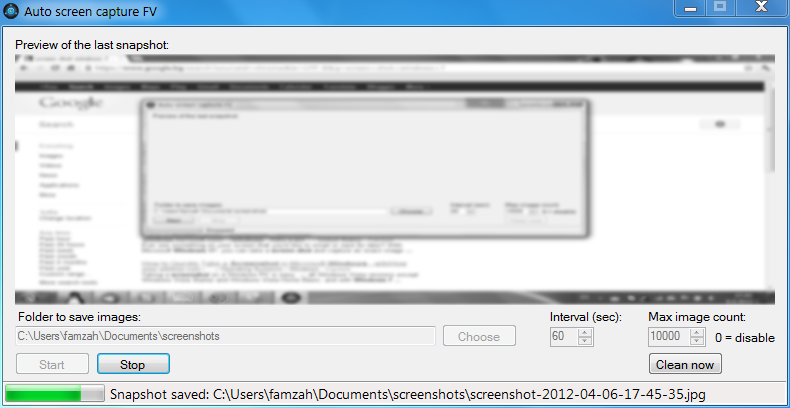
I recently migrated my desktop back to Windows, and while I’m at work I need to have regular screenshots of my monitor, for investigation and other purposes. I easily found a solution to record desktop activity by making regular screenshots on Ubuntu, and I thought that Windows solutions will be even more. It turned out to be the opposite — they were all either paid or not working/lacking features.

Here is how “Auto Screen Capture FV” was born. Two screenshots of the interface follow:

It has the following features:

  • Runs on Windows
  • Free as speech; open-source, developed with Microsoft Visual C# 2010 Express
  • Captures a screenshot automatically without disrupting user activity
  • Saves the snapshot images as compressed JPEG files, in order to save disk space
  • The destination directory where the images are saved is selected by the user
  • Rotates too old image files by deleting them, in order to save disk space
  • All settings are permanently saved in the registry, so next program starts remember what you configured
  • Auto screen capture can be easily temporarily suspended
  • Program can run in background; it minimizes to system tray

Old image files are actually moved to “Recycle bin” by default, in order to be on the safe side — if we have a bug, no files are lost. Auto Screen Capture FV has been tested on Windows 7.

Download links:


Resources:


3 Comments

Power consumption of a server with an Intel E3-1200 Series CPU

I got my hands on the following server for a day, so I decided to measure its power consumption because the new Intel Xeon Processor E3 series look very promising. They support ECC memory and at the same time have “Intelligent, Adaptive Performance”, which in plain text means that they can power themselves down and thus save energy. Furthermore, their price and the price of the motherboards are fair as these CPUs seem to be meant to be used mainly in Desktop workstations. Having ECC support lets us use them in servers too. The only caveat is that those Sandy Bridge based Xeon CPUs support only single CPU configuration — so don’t try to find a dual-CPU motherboard.

Here is the server configuration:

BIOS settings are set up for optimal power savings without compromising performance. FAN control is enabled too. Room temperature is 21 degrees Celsius.

Power usage with different server utilization scenarios follows:

  • 7W — power off; idle consumation, the IPMI is alive
  • 39W — power on; Linux OS is idle
    • IPMI sensor readings: cooling FAN works with 1755 RPM — relatively quiet; CPU temperature is Low
  • 45W to 60W — power on; moderate Linux OS usage
    • load average: 1.53; installing 200 new packets via “apt-get”
    • IPMI sensor readings: cooling FAN works with 1755 RPM — relatively quiet; CPU temperature is Low
  • 130W — power on; full stress by “stress –cpu 16 –io 8 –vm 8 –vm-bytes 1780M –hdd 4″
    • load average: 36.00; I/O load: 100%, mostly write; CPUs busy @ 100%, 70% user, 30% system, all CPU cores are utilized
    • RAM: about 95% used, 30% cached; network load: 22 Mbit/s constant SSH transfer
    • IPMI sensor readings: cooling FAN works with 3100 RPM — much noisy; CPU temperature is Medium