/contrib/famzah

Enthusiasm never stops


Leave a comment

Free SSL certificates

More and more people start telling me about the StartSSL SSL authority, which is a daughter company of StartCom. The rumor that they are giving free SSL certificates looked too unbelievable to me, so I decided to review this more carefully.

After much reading at their page, what people say was confirmed – StartSSL really issue SSL certificates for free, when they are about to be used by individuals on their websites. This means that your personal name stays in the SSL certificate information which can be reviewed if you click on the SSL bar in your web browser.

Business or other legal entities verify their company’s information once for an annual fee and can then issue an unlimited count of SSL certificates too, including wild-card ones. Once verified, a business customer can purchase EV certificates for US$ 49.90 per year.

You can compare these prices with any other SSL certificate authority and you’ll see it yourself that StartSSL are the most affordable one, and the only one which doesn’t charge you for what doesn’t cost them money either – that’s why they can offer “loosely verified” SSL certificates for personal websites for free. It’s unbelievable but true.

My IT brain immediately started to doubt the technical side. I had to check if web browsers accept these SSL certificates without issuing an SSL warning about the certificate being signed by an unknown SSL authority. The test results were successful and the SSL root authority of StartSSL was recognized by the latest version of:

  • Internet Explorer 8 on Windows.
  • Chrome on Windows.
  • Firefox on Windows and Linux.
  • Chromium on Linux.

Furthermore, the Debian “lenny”, “squeeze” and Ubuntu Lucid CA repositories also recognize the StartSSL root certificate. You can verify this yourself by the following command:
openssl s_client -CApath /etc/ssl/certs -connect startssl.com:443

StartSSL have a long list with platforms and browsers which recognize their certificates. You can review the list at the products comparison page.

No more self-signed SSL certificates for personal use, hurray! πŸ™‚

Update 29/Nov/2010: If you’re interested, you can also review my success story with the Support staff of StartSSL.

34 Comments

The Super Micro IPMI Console + Java are killing me

I don’t know if it’s Java or the Super Micro IPMI developers to blame, or both. One thing is for sure – I rarely need it, but almost each time I want to use the server-critical “Console Redirection” feature on our Super Micro servers, there is some problem with the Java applet. Thus I’m not able to access the remote console of the server quickly, which in turn gets me real headache.

Today, it’s the “Launch Console” button doing absolutely nothing on my Kubuntu desktop – no errors, no action after clicking it, no nothing. I (always) have a “backup option” – a Windows 7 virtual machine running on my desktop, as Java tends to work better for me on Windows (cross-platform, eh?). Same problem on the Windows too. As I’m a real paranoid about having a backup, I have a backup of the “backup option” – X over VNC, running on
some not-so-bleeding-edge Linux machines, in order to have a “stable” Java installation there. Though the Java failed on them today as well, as they are running Debian “lenny”, which seems to be having the latest Java version 1.6.20 too.

Well… sorry Java applets + Super Micro IPMI, you really disappoint me! :-/

27/Mar/2012: Resolution: Use the IPMIView application which does not rely on web browsers. Tested with Java Version 6 Update 31 (build 1.6.0_31) on Windows 7. Note that IPMIView does not provide a KVM console for older versions of the Super Micro IPMI devices — the good news is that those devices work well within a web browser. πŸ™‚

The (ugly) fix is to downgrade your Java to 1.6.19 (and disable automatic Java updates):
http://www.webhostingtalk.com/showthread.php?t=953055

Update #1: I downgraded to Java 1.6.19 on my Windows 7 by:

  1. Uninstalling the Java 1.6.20 JRE update.
  2. Installing the Java 1.6.19 JRE update which I downloaded from the “Archive: Java[tm] Technology Products Download” page.
  3. Being able to get this working only with Chrome. Firefox and IE 8 failed to work.

Update #2: Linux doesn’t seem to be having any problems. Firefox 3.6.3 on Ubuntu and Gentoo with Sun Java 1.6.20 works fine.

Update #3: If you upgrade the IPMI firmware to version 2.02, the Windows problem is fixed.


Here is some debug info from the Debian “lenny” Iceweasel browser, the only one which issued an error:

Unable to launch ATEN Java iKVM Viewer.
An error occurred while launching/running the application.

Title: ATEN Java iKVM Viewer
Vendor: ATEN
Category: Download Error

Unable to load resource: (https://%IP%/iKVM.jar, 1.56.3.0×0)

Wrapped Exception: java.io.IOException: HTTP response 404.

At the same time, the Java test page works fine. The version on the Debian “lenny” “sun-java6-jre” package is “6-20-01lenny1” (Java JRE 1.6.20).

The same problem is re-produced on:

  • Windows 7, running Java 1.6.20, under IE 8, Firefox 3.6.3 and Chrome 5.0.375.99.
  • Kubuntu Lucid, running OpenJDK 6 build b18, under Firefox 3.6.3.

The Firmware Revision of the IPMI interface on the X8DTL motherboard is 01.29, dated 2010-01-06. It’s not the latest one, but surely not a very old one. After all, you can’t reboot your production servers for every IPMI firmware release…

Anyway, I try not to write articles with negative attitude, but this time I just couldn’t resist.
Java, Java, Java… πŸ™‚


67 Comments

C++ vs. Python vs. Perl vs. PHP performance benchmark

Update: There areΒ newer benchmark results.


This all began as a colleague of mine stated that Python was so damn slow for maths. Which really astonished me and made me check it out, as my father told me once that he was very satisfied with Python, as it was very maths oriented.

The benchmarks here do not try to be complete, as they are showing the performance of the languages in one aspect, and mainly: loops, dynamic arrays with numbers, basic math operations.

Out of curiosity, Python was also benchmarked with and without the Psyco Python extension (now obsoleted by PyPy), which people say could greatly speed up the execution of any Python code without any modifications.

Here are the benchmark results:

Language CPU time Slower than Language
version
Source
code
User System Total C++ previous
C++ (optimized with -O2) 1,520 0,188 1,708 g++ 4.5.2 link
Java (non-std lib) 2,446 0,150 2,596 52% 52% 1.6.0_26 link
C++ (not optimized) 3,208 0,184 3,392 99% 31% g++ 4.5.2 link
Javascript (SpiderMonkey) see comment (SpiderMonkey seems as fast as C++ on Windows)
Javascript (nodejs) 4,068 0,544 4,612 170% 36% 0.8.8 link
Java 8,521 0,192 8,713 410% 150% 1.6.0_26 link
Python + Psyco 13,305 0,152 13,457 688% 54% 2.6.6 link
Ruby see comment (Ruby seems 35% faster than standard Python)
Python 27,886 0,168 28,054 1543% 108% 2.7.1 link
Perl 41,671 0,100 41,771 2346% 49% 5.10.1 link
PHP 5.4 roga’s blog results (PHP 5.4 seems 33% faster than PHP 5.3)
PHP 5.3 94,622 0,364 94,986 5461% 127% 5.3.5 link

The clear winner among the script languages is… Python. πŸ™‚

NodeJS JavaScript is pretty fast too, but internally it works more like a compiled language. See the comments below.

Please read the discussion about Java which I had with Isaac Gouy. He accused me that I am not comparing what I say am comparing. And also that I did not want to show how slow and how fast the Java example program can be. You deserve the whole story, so please read it if you are interested in Java.

Both PHP and Python are taking advantage of their built-in range() function, because they have one. This speeds up PHP by 5%, and Python by 20%.

The times include the interpretation/parsing phase for each language, but it’s so small that its significance is negligible. The math function is called 10 times, in order to have more reliable results. All scripts are using the very same algorithm to calculate the prime numbers in a given range. The correctness of the implementation is not so important, as we just want to check how fast the languages perform. The original Python algorithm was taken from http://www.daniweb.com/code/snippet216871.html.

The tests were run on an Ubuntu Linux machine.

You can download the source codes, an Excel results sheet, and the benchmark batch script at:
http://www.famzah.net/download/langs-performance/


Update (Jul/24/2010): Added the C++ optimized values.
Update (Aug/02/2010): Added a link to the benchmarks, part #2.
Update (Mar/31/2011): Using range() in PHP improves performance with 5%.
Update (Jan/14/2012): Re-organized the results summary table and the page. Added Java.
Update (Apr/02/2012): Added a link to PHP 5.4 vs. PHP 5.3 benchmarks.
Update (May/29/2012): Added the results for Java using a non-standard library.
Update (Jun/25/2012): Made the discussion about Java public, as well as added a note that range() is used for PHP and Python.
Update (Aug/31/2012): Updated benchmarks for the latest node.js.
Update (Oct/24/2012): Added the results for SpiderMonkey JavaScript.
Update (Jan/11/2013): Added the results for Ruby vs. Python and Nodejs.


Leave a comment

Filter a character sequence leaving only valid UTF-8 characters

This is my implementation of a Perl regular expression which sanitizes a multi-byte character sequence by filtering only the valid UTF-8 characters in it. Any non-UTF-8 character sequences are deleted and in the end you get a clean, valid UTF-8 multi-byte string.

Note that this works only for a subset of the UTF-8 alphabet. I.e. this is not a general filtering regular expression, but it leaves the standard ASCII and only the Cyrillic UTF-8 characters. You can easily extend the regular expression and add another UTF-8 subset.

Let’s get to the requirements:

  • Standard ASCII symbols: As it is described at the Wikipedia UTF-8 page, the ASCII characters from Hex 00-7F are encoded without modification in a UTF-8 sequence, as they are “Single-byte encoding (compatible with US-ASCII)”. Therefore, any character between Hex 00-7F is valid in a UTF-8 sequence. Though, for our current example, we will leave only certain ASCII symbols and namely a few of the control ones, and the printable ones:
    • ASCII control symbols: \t -> Hex 09, \n -> Hex 0A, \r -> Hex 0D.
    • Printable single-byte ASCII symbols: Hex 20-7E.
  • Cyrillic multi-byte UTF-8 characters, only the Russian/Bulgarian ones: If you open the Unicode/UTF-8 character table, and navigate to the “U+0400…U+04FF: Cyrillic” block, you can visually choose which characters you want to allow in your UTF-8 sequence by looking in the “character” column. In my case, I want to allow the characters “А”, “Π‘”, “Π’”, “Π“” and so on until “ю”, “я”. If you look at the “UTF-8 (hex.)” column, you will notice that the range of these Cyrillic characters is from Hex d0 91 to Hex d0 bf, and from Hex d1 80 to Hex d1 8f. Yes, two ranges.

Therefore, our regular expression has to allow only the following sequences:

  • Single-byte, standard ASCII: \t, \n, \r, and x20-x7E.
  • Multi-byte, Cyrillic UTF-8: xD090-xD0BF, and xD180-xD18F.

Once you have established these rules, it’s very easy to construct the regular expression:

$my_string =~ s/.*?((?:[\t\n\r\x20-\x7E])+|(?:\xD0[\x90-\xBF])+|(?:\xD1[\x80-\x8F])+|).*?/$1/sg;


Update: 19/Nov/2010

If you want to allow some more characters, for example, the German umlaut letters “Γ€”, “ΓΆ”, “ΓΌ”, you have to include the following sequence too:

  • Multi-byte, UTF-8 Latin letters with diaeresis, tilde, etc: \xC380-\xC3BF.

The new UTF-8 filtering regular expression then becomes the following:

$my_string =~ s/.*?((?:[\t\n\r\x20-\x7E])+|(?:\xD0[\x90-\xBF])+|(?:\xD1[\x80-\x8F])+|(?:\xC3[\x80-\xBF])+|).*?/$1/sg;


If you are wondering why I would need only certain ASCII control and only the printable ASCII characters, the answer is – because of the XML standard. As the XML W3C Recommendations state, only certain Hex characters and character sequences are valid in an XML document, even as HTML entities: #x9 | #xA | #xD | [#x20-#xD7FF] | [#xE000-#xFFFD] | [#x10000-#x10FFFF].

Libexpat is very strict in what you feed as input, and if your input isn’t a valid UTF-8 sequence, you will end up with the error message “XML parse error: not well-formed (invalid token)”.


23 Comments

OpenSSH ciphers performance benchmark

πŸ’‘ Please review the newer tests.


Ever wondered how to save some CPU cycles on a very busy or slow x86 system when it comes to SSH/SCP transfers?

Here is how we performed the benchmarks, in order to answer the above question:

  • 41 MB test file with random data, which cannot be compressed – GZip makes it only 1% smaller.
  • A slow enough system – Bifferboard. Bifferboard CPU power is similar to a Pentium @ 100Mhz.
  • The other system is using a dual-core Core2 Duo @ 2.26GHz, so we consider it fast enough, in order not to influence the results.
  • SCP file transfer over SSH using OpenSSH as server and client.

As stated at the Ubuntu man page of ssh_config, the OpenSSH client is using the following Ciphers (most preferred go first):

aes128-ctr,aes192-ctr,aes256-ctr,arcfour256,arcfour128,
aes128-cbc,3des-cbc,blowfish-cbc,cast128-cbc,aes192-cbc,
aes256-cbc,arcfour

In order to examine their performance, we will transfer the test file twice using each of the ciphers and note the transfer speed and delta. Here are the shell commands that we used:

for cipher in aes128-ctr aes192-ctr aes256-ctr arcfour256 arcfour128 aes128-cbc 3des-cbc blowfish-cbc cast128-cbc aes192-cbc aes256-cbc arcfour ; do
        echo "$cipher"
        for try in 1 2 ; do
                scp -c "$cipher" test-file root@192.168.100.102:
        done
done

You can review the raw results in the “ssh-cipher-speed-results.txt” file. The delta difference between the one and same benchmark test is within 16%-20%. Not perfect, but still enough for our tests.

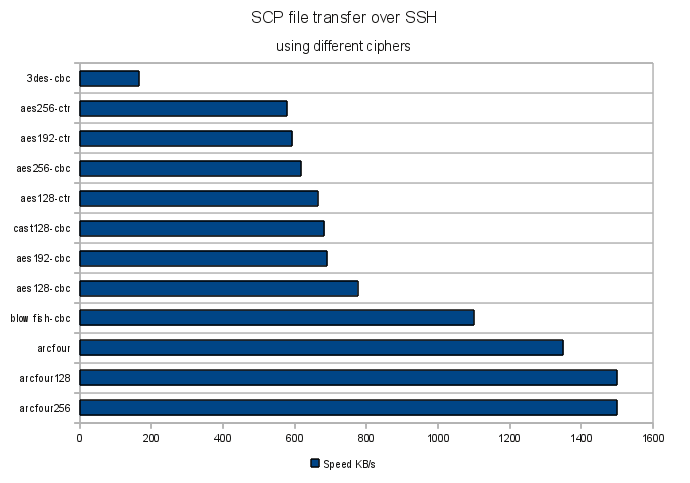
Here is a chart which visualizes the results:

The clear winner is Arcfour, while the slowest are 3DES and AES. Still the question if all OpenSSH ciphers are strong enough to protect your data remains.

It’s worth mentioning that the results may be architecture dependent, so test for your platform accordingly.
Also take a look at the below comment for the results of the “i7s and 2012 xeons” tests.


Resources:


9 Comments

Migrate your TWiki to Google Sites (using Google Sites API and Perl)

If you want to transfer your existing TWiki webs to Google Sites, you can do it automatically with the power of the Google Sites API and Perl.

You can download the Perl script, which I used to export my TWiki webs and then import them in Google Sites, at the following page: http://www.famzah.net/download/google-api/twiki2googlesites.pl

Note that this is in no way a complete migration solution. You can use it as a demonstration/base on how to interact with the following Google API features using Perl:

Now you know that you can use Perl to interact with Google APIs. Go build your own scripts!

Update: Google released Python command line tools for the Google Data APIs (GoogleCL). They seem promising and very easy to use for simple automation tasks.

P.S. If you’re limited on time and your TWiki is relatively small on pages count, you’ve got a pretty good chance of migrating it manually with copy/paste, than writing your own migration scripts. Believe me. πŸ™‚


Leave a comment

Perl API Kit for ResellerClub (DirectI)

ResellerClub offer a SOAP/WSDL API interface, in addition to their Online Control Panel, which lets you automate some of your tasks or integrate it directly with your website.

They claim to support a Perl API Kit, but it doesn’t work out-of-the box for me. Whenever I make an API call, I get the following:

soapenv:Server.userException java.lang.Exception: Body not found.

There is a similar bug report at Web Hosting Talk too.

After a few hours of struggling with SOAP::Lite, reading sources, and some trial and error, I finally was able to make the API work in Perl! πŸ˜€

If you want to try my version of their Perl API Kit, you have to execute the following:

wget --no-verbose http://www.famzah.net/download/resellerclub/resellerclub-api.tgz
tar -zxf resellerclub-api.tgz
cd resellerclub-api

vi example.pl # edit your username/password
./example.pl

In order to build my version of the Perl API Kit yourself, click the “show source” link below and execute the commands.

mkdir resellerclub-api
cd resellerclub-api
wget --no-verbose http://www.famzah.net/download/resellerclub/setup.sh
wget --no-verbose http://www.famzah.net/download/resellerclub/example.pl
chmod +x setup.sh example.pl
./setup.sh

vi example.pl # edit your username/password
./example.pl

The scripts use some Debian/Ubuntu specific “apt-get” commands to install the required Perl and system packages, but this can easily be ported to other *nix systems too.


23 Comments

2G GPRS vs. 3G UMTS connection battery usage on mobile phones

Very often I hear the statement – don’t leave your phone registered to the UMTS (3G) or GPRS (2G) network, as this will decrease its battery life and you’ll need to charge it more often.

Today I decided to bust this myth and also to compare if UMTS (3G) uses more battery power than the slower GPRS (2G) transfer standard.

The theoretical speeds of the GSM standards in question follow:
GPRS (2G) – up to 114 kbps (~14 Kbytes/s)
UMTS (3G) – up to 2 Mbps (~250 Kbytes/s)

The following was tested with a Nokia 5800 XpressMusic via a Bluetooth connection to a computer. The Bluetooth connection itself uses some power but my measurements show that its usage is about 0.15W, so we will consider it negligible for our benchmarks.
The power usage was measured using Nokia Energy Profiler.

So here are the end results about power usage in different scenarios:

  • 0.40W – no connections at all.
  • 0.40W – no Bluetooth connection, just registered to 2G or 3G network.
  • 0.52W – Bluetooth and 2G or 3G connections established, but connections are idle.
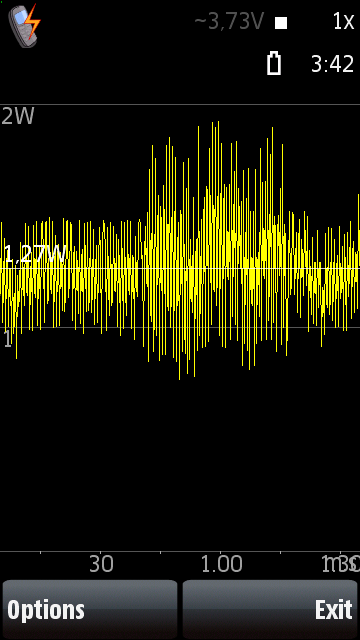
  • 1.27W – 8 Kbytes/s (64 kbps) download via 2G.
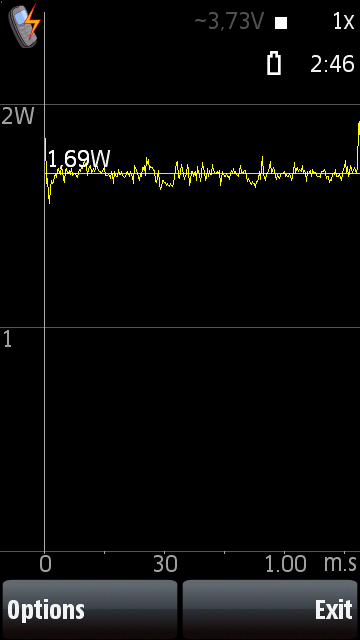
  • 1.69W – 65 Kbytes/s (520 kbps) download via 3G.
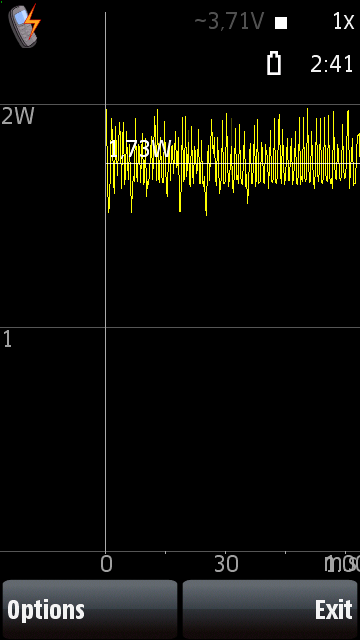
  • 1.73W – 120 Kbytes/s (960 kbps) download via 3G directly from mobile phone, no Bluetooth. If we add the Bluetooth power usage, this would sum to up to 1.90W.

The myth is busted: Leaving your phone registered to the 2G or 3G network shouldn’t drain up your battery faster, if you make no traffic to the 2G or 3G network.
Update: Maybe I spoke too early. As “varnav” commented below, the 3G mode may make your talk time 2+ times less. At least that’s what the technical specifications of iPhone show. I haven’t tested this but I doubt it that Apple haven’t, so they are probably right, at least for their iPhone models. πŸ™‚
Conclusion: You should use 3G if you are about to make data transfers and probably it is better to turn it off after that. Nokia 5800 has an option to enable the 2G/3G data connection only when data is about to be transferred, and this is what I currently use as settings.

Let’s analyze if 2G or 3G uses more power if you start making data transfers. First impression is that 3G uses more power. However its transfer speed is much greater, so the overall Watts usage for the same downloaded size will be smaller, which makes 3G more efficient and thus less power consuming in practice.

Here is an example to illustrate the above statement. Let’s assume that we want to download 1000 Kbytes:

  • 2G: 1000 Kbytes at download speed 8 Kbytes/s will take 125 seconds. At the power usage of 1.27W this will take about 159 Watts-seconds (125 seconds * 1.27 Watts).
  • 3G: 1000 Kbytes at download speed 65 Kbytes/s will take 15 seconds. At the power usage of 1.69W this will take 26 Watts-seconds (15 seconds * 1.69 Watts).

Therefore, using 3G the consumption has decreased to 16.3%! Yes, in this case 3G would use six times less energy from the phone battery, if we downloaded the same amount of data using 2G, at maximum speeds.

One interesting power usage pattern by 3G is that when you stop the data transfer, the power usage doesn’t drop immediately to the full idle state. Instead, about 0.80W is drained for about 30 seconds, and then the connection is put in total idle state. Review the power usage images below, in order to get a better idea of what I mean. Even if we add up these 24 Watts-seconds (30 seconds * 0.80 Watts) to the above calculations, 3G would still use 318% less energy.


1 Comment

Firefox 3.6 menu and right-click are slow on Kubuntu Lucid

If you have installed a fresh copy of Kubuntu Lucid as I did, on two different computers, and your Firefox main menus or right-click context menus are being shown slowly (i.e. take several seconds to appear), then I can tell you what it was not for me. And later I’ll tell you how I fixed it. πŸ™‚

It was not:

  • Firefox settings in “~/.mozilla”, add-ons or extensions. Disable/enable makes no difference.
  • nVidia drivers, or any other video drivers like ATI, etc, as you’ll see below.
  • GTK theme.
  • Custom fonts.
  • The Xorg server.
  • Anything I could easily spot via strace, because Firefox is very complicated for me.
  • Kubuntu theme.
  • Firefox safe-mode doesn’t help either.

I’ve tried it all. The problem was in the global network settings, and more exactly in “/etc/hosts“.
Logical, no? πŸ™‚

The fix: You need to make sure that “localhost” is defined properly for “127.0.0.1” and not defined for the IPv6 configuration like it was by default on my two newly set up Kubuntu boxes.

That’s a bad “/etc/hosts” file:

127.0.0.1       localhost

# The following lines are desirable for IPv6 capable hosts
::1     localhost ip6-localhost ip6-loopback
... (and so on)

That’s the fixed “/etc/hosts” file:

127.0.0.1       localhost

# The following lines are desirable for IPv6 capable hosts
::1     ip6-localhost ip6-loopback
... (and so on)

Pay attention that on line #1 there is “localhost” defined for “127.0.0.1”, and on line #4 there is no “localhost” for the IPv6 address “::1”.

Enjoy your faster Firefox.

Update: It seems that “localhost” must be defined for IPv6, according to the Ubuntu developers. This is discussed in Ubuntu Bug #301430: ipv6 /etc/hosts missing localhost hostname. I’ll leave it up to you to decide if you want to risk breaking your IPv6 or other functionality.

P.S. Also enjoy Steve Ballmer and his “Developers, developers, developers…”!


Resources:


4 Comments

Debug Debian or Ubuntu /etc/network/interfaces

Here is a debug idea for your Debian or Ubuntu server or network station, if you do fancy stuff with your network configuration, or if you are in trouble even with a standard configuration.

Let’s first review some documentation and namely the one of ifup(8) and ifdown(8). Here is an excerpt from it:

KNOWN BUGS/LIMITATIONS
The program keeps records of whether network interfaces are up or down. Under exceptional circumstances these records can become inconsistent with the real states of the interfaces.

Moreover, if the ifup(8) command fails in the middle/end of configuring an interface, then the interface is marked as “down” in the state database but is actually configured, i.e. its actual state is not reverted to a non-configured actually “down” interface. As a result, ifdown(8) doesn’t want to bring down the interface later, even though it’s configured to some point. Furthermore, if ifdown(8) fails in the middle of the de-configuration, you are not notified properly by an error message.

Why would you care so much? If all ifup(8) and ifdown(8) procedures don’t complete well, most probably `/etc/init.d/networking restart` will not work as expected, and you also won’t be able to bring up or down certain interfaces by calling “ifup $IFACE” or “ifdown $IFACE”.

Let’s see how we can have better control and debug info. Here is a somehow complicated “/etc/network/interfaces” example which could cause you some trouble and is not that easy to debug:

# The primary network interface
auto bond0
iface bond0 inet static
        address 192.168.7.13
        netmask 255.255.255.0
        network 192.168.7.0
        broadcast 192.168.7.255
        gateway 192.168.7.8
        pre-up /sbin/ifconfig eth0 up
        pre-up /sbin/ifconfig eth1 up
        pre-up echo bond0 > /sys/module/aoe/parameters/aoe_iflist
        pre-up echo 100 > /sys/class/net/bond0/bonding/miimon
        pre-up echo 1 > /sys/class/net/bond0/bonding/mode
        post-up /sbin/ifenslave bond0 eth0 eth1
        post-up /sbin/ip link set bond0 txqueuelen 1000
        down /sbin/ifenslave -d bond0 eth0 eth1
        post-down /sbin/ifconfig eth0 down
        post-down /sbin/ifconfig eth1 down

The problem in my case was that I used “post-down” instead of “down” for the “/sbin/ifenslave -d bond0 eth0 eth1” but that wasn’t obvious for me – I spent almost an hour trying to figure out why my “ifup” and “ifdown” (and the whole `/etc/init.d/networking` script on boot and restart) weren’t working as expected.

How can you debug it?
You can add a test for successfulness after each statement and also add one very final debug message in each “post-up” and “post-down” interfaces(5) section:

# The primary network interface
auto bond0
iface bond0 inet static
        address 192.168.7.13
        netmask 255.255.255.0
        network 192.168.7.0
        broadcast 192.168.7.255
        gateway 192.168.7.8
        pre-up /sbin/ifconfig eth0 up || echo FAILED break point 1
        pre-up /sbin/ifconfig eth1 up || echo FAILED break point 2
        pre-up echo bond0 > /sys/module/aoe/parameters/aoe_iflist || echo FAILED break point 3
        pre-up echo 100 > /sys/class/net/bond0/bonding/miimon || echo FAILED break point 4
        pre-up echo 1 > /sys/class/net/bond0/bonding/mode || echo FAILED break point 5
        post-up /sbin/ifenslave bond0 eth0 eth1 || echo FAILED break point 6
        post-up /sbin/ip link set bond0 txqueuelen 1000 || echo FAILED break point 7
        post-up echo Successful UP for interface $IFACE
        down /sbin/ifenslave -d bond0 eth0 eth1 || echo FAILED break point 8
        post-down /sbin/ifconfig eth0 down || echo FAILED break point 9
        post-down /sbin/ifconfig eth1 down || echo FAILED break point 10
        post-down echo Successful DOWN for interface $IFACE

Note the very last “post-up” and “post-down” debug statements which we added, they must always be the last “post-up” and “post-down” statements:

        ...
        post-up echo Successful UP for interface $IFACE
        ...
        post-down echo Successful DOWN for interface $IFACE

If you don’t see the “Successful UP for interface $IFACE” or “Successful DOWN for interface $IFACE” for each of the configured interfaces, then something with your network start-up script went wrong (`/etc/init.d/networking`).

The step-by-step debug statements (“… || echo FAILED break point XX”) should help you determine where exactly the problem was.

Note that the “echo” debug statements here will always exit successfully which will not interrupt your network script as it would have done it if the debug “echo” was missing.